
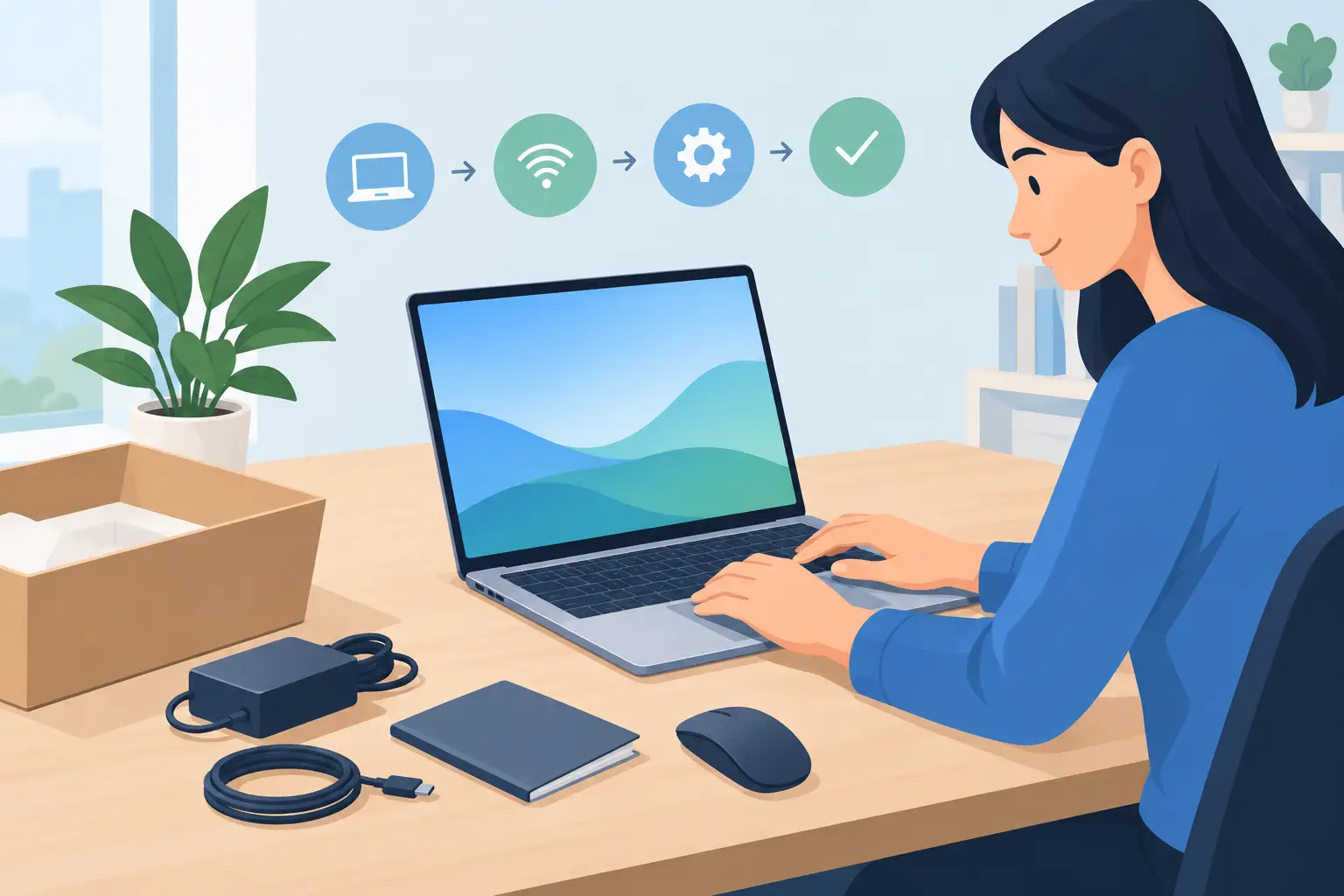
A new laptop should feel exciting, not like a Saturday lost to update screens, forgotten passwords and a printer that refuses to cooperate. A careful laptop setup after purchase gives you a device that is secure, organised and ready for the jobs you rely on it for – whether that is working from home, running a small business, studying or simply keeping in touch.
The first day matters because the choices made now affect how easy the laptop is to use later. Rushing through the welcome screens can leave you with unwanted trial software, weak security settings, files stored in the wrong place or no reliable backup when something goes wrong. Take a little time to set it up properly and you will avoid many of the frustrations that lead to lost work and unnecessary downtime.
Laptop setup after purchase: start with the essentials
Before installing apps or copying files, plug the laptop into power and connect it to a trusted Wi-Fi network. Let the operating system complete its initial setup, then check for updates straight away. New laptops may have been sitting in a warehouse for months, so they can need important security fixes and driver updates before they are truly ready.
Updates can take longer than expected, particularly on a slower internet connection. It is tempting to postpone them, but it is better to let them finish before an urgent workday. Keep the laptop connected to power during major updates and avoid forcing it off while it is restarting.
Once updates are complete, check that the date, time zone and display settings are correct. Adjust the screen brightness and text size to a comfortable level. This sounds minor, but a laptop that strains your eyes is not much use after several hours of emails, accounts or video calls.
Create the right account and protect access
Your user account determines who can access the laptop and what happens if it is misplaced. Use a strong, unique password or passphrase rather than recycling one from an older device. Where available, set up fingerprint or facial sign-in as a convenient extra layer, but keep your main password secure and memorable.
If the laptop will be shared at home, give each person their own account. Separate accounts keep documents, browser history, email and saved passwords private. They also prevent a family member from accidentally changing settings or deleting files needed for work.
For a business laptop, avoid using a personal email address as the main recovery account if you can. Use an account the business controls, and make sure recovery details are current. This becomes particularly important if a staff member leaves, a phone number changes or the laptop needs to be recovered after loss or theft.
Turn on two-factor authentication for email, cloud storage, banking and other important services. A password alone is no longer enough protection for accounts that hold personal information, invoices or customer records. An authenticator app is usually safer than relying only on text messages, although either is better than having no second step at all.
Remove what you do not need before it gets in the way
Many new laptops arrive with trial antivirus programs, promotional apps, games and manufacturer utilities. Some are useful, but others run in the background, show pop-ups or slow startup. Review the installed applications and remove anything you know you will not use.
Do this with care. Leave drivers and hardware support tools in place unless you know what they do. Removing software called something vague such as “system component” can cause problems with sound, Wi-Fi, touchpads or function keys. If you are unsure, ask before deleting it.
You generally do not need several antivirus products running at once. Multiple security programs can conflict and make a laptop feel sluggish. Use a reputable security option, keep it updated and make sure real-time protection is switched on. The best choice depends on your operating system, the type of work you do and whether the laptop is part of a managed business setup.
Move files with a plan, not in a hurry
File transfer is where many people run into trouble. Old laptops often contain documents scattered across the desktop, downloads folder, email attachments, photos and USB drives. Copying everything without checking can transfer years of clutter, duplicate files and potentially unwanted software.
Start by identifying what genuinely needs to move. For most home users, this includes documents, photos, videos, browser bookmarks and email archives. For a sole trader or small business, it may also include accounting files, client documents, templates, scanned records and specialised software data.
Keep the old laptop untouched until you have checked that important files open correctly on the new one. Do not wipe, sell or give it away immediately. A few days of testing gives you time to spot a missing folder or a file that was saved somewhere unexpected.
Cloud storage can make this process easier, but it is not automatically a backup. If a file is deleted or corrupted and the change synchronises, that issue may appear everywhere. Keep at least one separate copy of essential files, ideally on an external drive or another secure backup service.
Organise your folders for future you
A simple folder structure saves time every week. Create clear folders for personal records, work, tax information, photos and active projects. Use meaningful file names that include dates or client names where useful, rather than names such as “final”, “final2” and “new version”.
For business records, consider who would be able to find a document if you were unavailable. Clear naming and consistent storage are practical safeguards, not just admin work.
Install the software you actually rely on
Install essential programs from official sources and sign in carefully. Common priorities include your web browser, office applications, video meeting software, accounting tools, password manager and any industry-specific programs you need for work.
Be cautious with free downloads found through search results or pop-up adverts. Fake download buttons and imitation websites are common routes for unwanted software. If you are reinstalling a paid program, locate the original licence details before assuming you need to buy it again.
Set your preferred browser as the default and check that it is signed into the correct profile. This helps bring across bookmarks, saved addresses and settings, but only if the profile belongs to you. On a shared or business laptop, do not save personal passwords in a browser profile that others can access.
Connect printers, email and everyday devices early
Do not wait until five minutes before a deadline to connect your printer or scanner. Set it up while you have time to test printing, scanning and saving documents to the right location. Wireless printers can be especially fussy if they are connected to an older Wi-Fi network, sitting too far from the router or using a different network from the laptop.
Set up your email on the laptop and send a test message to confirm incoming and outgoing mail works. Check your calendar, contacts and email signature too. For a business, ensure the signature includes the correct phone number, role and branding before messages start going out to customers.
Also test the webcam, microphone, speakers and Bluetooth. A quick video call with a friend or colleague can reveal problems with permissions, audio input or camera settings before an important meeting.
Put recovery measures in place
Laptops can be stolen, dropped, damaged by a spill or simply fail without warning. Enable device tracking if your operating system offers it, and make sure full-disk encryption is turned on. Encryption protects the information stored on the laptop if it falls into the wrong hands.
Set up a regular backup routine that suits how much your files change. Someone who only uses a laptop for browsing and occasional documents may be fine with weekly backups. A business handling customer files or daily accounts should back up much more frequently.
A practical final check includes these key points:
- the laptop installs updates automatically;
- important files have a separate backup;
- security protection and device encryption are active;
- your printer, email and video-call tools work; and
- recovery details and two-factor authentication are current.
Know when setup is worth getting help with
Some laptop setup jobs are straightforward. Others become complicated when an old computer has failing storage, email will not authenticate, a printer will not join the network or vital business software needs a careful transfer. Guessing at these issues can cost more time than asking for help early.
For households and small businesses around Wellington, Hutt Valley and Porirua, Tech Experts can set up a new laptop on-site or help remotely where suitable. That can include transferring data, connecting printers, configuring email, improving Wi-Fi access and checking that the device is properly protected.
A well-set-up laptop should disappear into the background while you get on with your work and life. Give it that solid start, keep the old device until everything is verified, and you will have far fewer unpleasant surprises when you need the laptop most.