

Unboxing a fresh computer brings genuine excitement to any desk. Whether we purchase a notebook for light domestic browsing in Miramar or deploy several workstations across a corporate team in the Wellington CBD, proper initial configuration lays the true foundation for long-term reliability. Skipping basic preparation steps during those initial moments often creates subtle system slowdowns, weak security gaps, and unexpected data loss down the track.
At Tech Experts, we regularly assist local families and growing companies with configuring new technical hardware. We created this comprehensive new laptop setup checklist to guide Wellington users through every essential step of preparing a new device safely and efficiently.
Phase 1: Initial Power-Up and Operating System Configuration
Getting basic settings right during the very first boot saves substantial troubleshooting time later on.
1. Physical Power Connection
- Plug the factory charger directly into a reliable power outlet prior to turning the unit on for the first time.
- Leave the power cable attached throughout the entire onboarding process. Unexpected battery shutoffs during system updates can corrupt essential core system files.
2. Regional Settings and User Accounts
- Pick English (New Zealand) during the main setup screen. Doing these fixes system dates, currency formats, and local keyboard layout options right away.
- Set up a primary administrative account using a long, strong password.
- Configure built-in fingerprint sensors or face recognition tools so daily system access remains swift and safe.
Phase 2: System Updates and Security Configuration
New computers often rest inside retail storage units or warehouses for many months before sale. Crucial security patches and software updates accumulate during that waiting period.
1. Operating System Updates
- Open your system settings panel and launch Windows Update or macOS Software Update immediately.
- Reboot the machine when prompted. Run the update scanner again until the system confirms no pending patches remain.
2. Software Cleanup
- Uninstall pre-loaded trial utilities, promotional software packages, and unnecessary browser extensions that slow down startup speeds.
- Remove unused desktop icons to keep storage drives tidy and free up system memory.
3. Activating Security Tools
- Check that built-in security platforms like Windows Defender or Apple XProtect remain fully active and updated.
- Activate drive encryption utilities like BitLocker or FileVault. Doing so keeps private files secure if a computer gets misplaced or stolen.
If setting up local protection seems tricky or time-consuming, our technicians provide complete laptop setup Wellington services to keep your hardware fully protected from day one.
Phase 3: Software Installation and Data Migration
Once the underlying operating system runs stably, we can proceed with installing daily applications and moving essential files over.
1. Installing Core Applications
- Download trusted web browsers such as Google Chrome, Mozilla Firefox or Microsoft Edge.
- Install main workplace applications like Microsoft 365, Google Workspace or cloud accounting platforms.
- Obtain software setup files directly from official developer sites to prevent malware risks.
2. Executing Safe File Transfers
- Use clean external hard drives, secure local storage, or cloud services to migrate documents, photos, and client files.
- Confirm that transferred files open correctly on the new machine before erasing or retiring old equipment.
When local companies need to move sensitive business data safely, our experienced data transfer Wellington specialists carry out seamless migrations without interrupting business hours.
Phase 4: Hardware Accessories and Network Integration
A new laptop must connect smoothly with existing office equipment and domestic peripheral tools.
1. Wireless Connectivity and Accessories
- Join your secure local Wi-Fi network and check web page loading speeds.
- Link wireless peripherals including computer mice, external keyboards, Bluetooth headsets, and desktop displays.
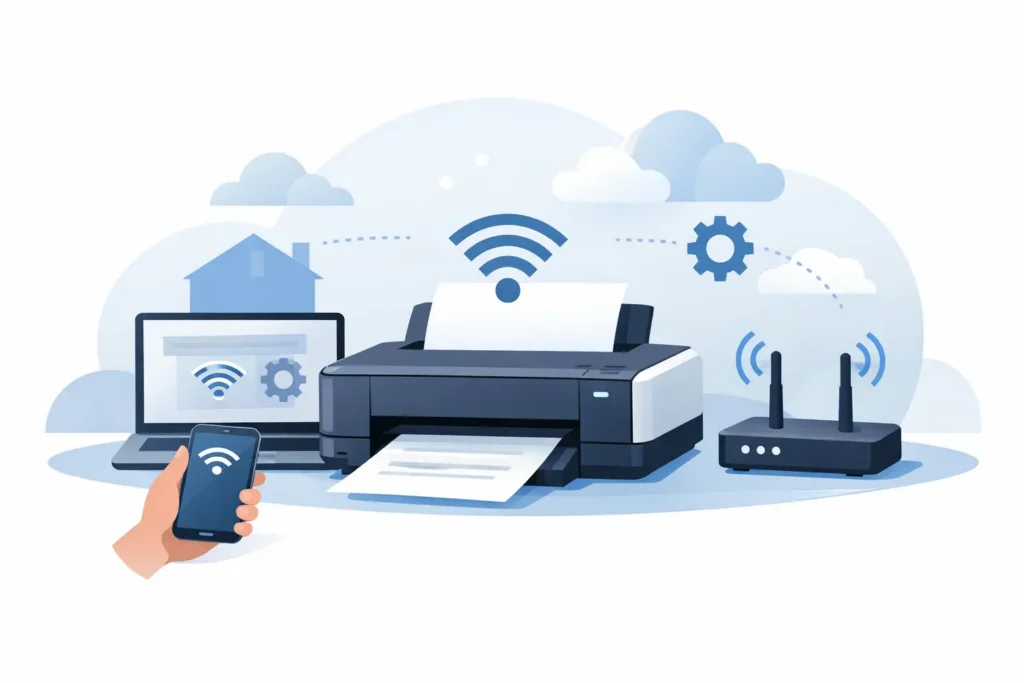
- Finish your full Wi-Fi and printer setup to verify that document printing works cleanly without driver errors.
2. Automated Cloud and Local Backups
- Configure cloud storage solutions like OneDrive, Google Drive or iCloud for background file syncing.
- Connect an external storage drive to schedule automatic weekly local system backups for extra safety.
Firms updating multiple staff workstations rely on our tailored small business IT setup Wellington services to align company hardware and protect corporate networks.
Phase 5: Knowing When to Request Technical Support
Even with a clear guide, technical difficulties can still happen during setup. Unresponsive hardware drivers, network pairing issues, and complex mailbox migrations can consume hours of working time.
Our team at Tech Experts supports clients across the entire Wellington area, including Hutt Valley and Porirua. We deliver direct mobile IT support Wellington solutions right to your home or office. If you need swift assistance without waiting for an in-person visit we also supply secure remote IT assistance to solve operating system issues instantly over the internet.
Achieving a Stress-Free Laptop Setup
Running through a thorough setup order keeps systems dependable, swift, and protected across many years. Addressing foundational updates, record migrations, and router links upfront secures valuable files and wards off sudden work delays.
When you require dedicated technical help or guided system setup, our team at Tech Experts is available to provide reliable Wellington IT support tailored to your requirements.
Read More :
New Computer Data Transfer Made Simple