
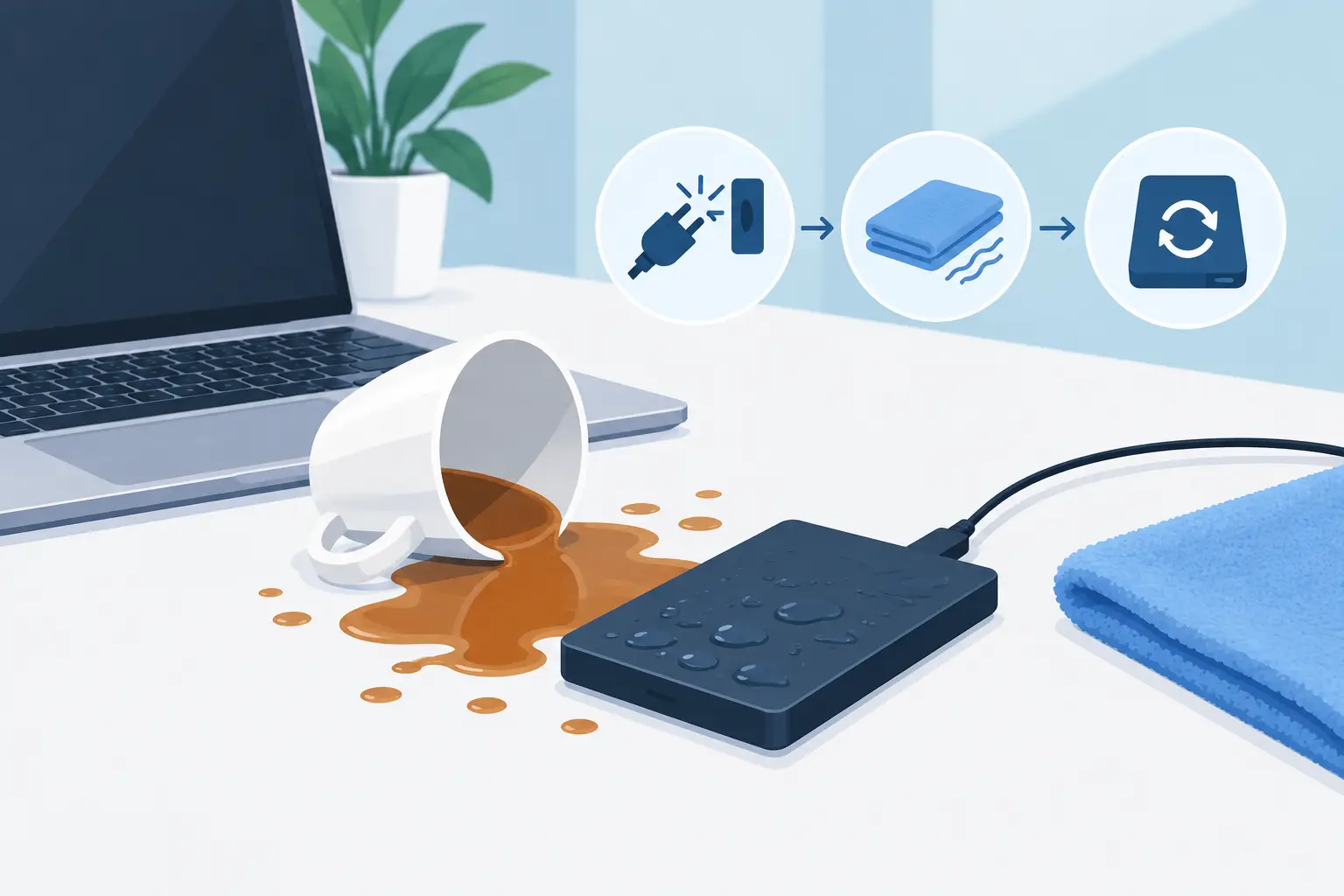
A knocked-over coffee beside a laptop can turn a normal workday into a stressful race against time. Data recovery after spill damage is often possible, but the actions taken in the first few minutes can make a major difference to both the device and the files stored on it.
Whether the computer holds family photos, invoices, client documents or years of email, resist the urge to see whether it still works. Liquid and electricity are a damaging combination. Your first job is to stop power reaching the affected parts, not to troubleshoot the laptop.
The first 10 minutes after a spill
Turn the device off immediately. If it is plugged in, switch it off at the wall and remove the charging cable. Do not spend time saving open documents or closing programmes normally. Hold the power button down if needed.
If the laptop battery can be removed without forcing anything, remove it. For most modern laptops, the battery is internal, so do not start undoing screws unless you know exactly what you are doing. Disconnect any USB drives, memory cards, docks and other accessories as well.
Next, carefully blot visible liquid with a clean, lint-free cloth or paper towel. Do not press keys repeatedly, shake the device aggressively or use a hairdryer. Heat can warp components, while blowing air may push liquid deeper into the keyboard and motherboard.
Positioning matters. For a conventional laptop, opening the screen and placing it keyboard-down in an inverted V shape can help liquid drain away from the internal components. Use a towel underneath to catch drips. If the spill went directly into ports, vents or the underside of the machine, keep it switched off and arrange an assessment as soon as possible.
A desktop computer needs a different approach. Disconnect power first, then unplug external drives and peripherals. Do not switch it back on to test it. Liquid may have reached the power supply, motherboard or connected storage drive even if the spill looks minor from the outside.
Why data recovery after a spill is different
A liquid spill does not automatically mean your data is gone. In many cases, the storage drive remains intact even when the laptop itself will not start. The difficulty is that turning a wet device on can create a short circuit, and corrosion can continue to develop after the surface appears dry.
Water is not all the same, either. Plain water can still cause damage, particularly if it contains minerals. Coffee, tea, soft drinks, wine and juice are more troublesome because they leave residue behind. Sugar and milk can become sticky, conductive or corrosive. Salt water is especially urgent, as it can damage electronics quickly.
The kind of storage inside the device also affects the recovery path. A traditional hard drive contains moving parts and can be sensitive to physical impact or contamination. A solid-state drive has no moving parts, but may be integrated into the motherboard on thinner laptops. When storage is soldered in place, recovering files can require repairing the board enough to access the drive’s encrypted data.
That is why a proper assessment is more useful than assumptions. A technician can determine whether the priority is cleaning and stabilising the device, removing the drive for safe copying, repairing a power fault or referring the case for specialised recovery.
What not to do with a wet laptop
The internet is full of well-meant advice that can make a recoverable situation worse. Avoid these common mistakes:
- Do not put the device in rice. Rice does not remove residue, and small particles can enter ports and openings.
- Do not use a microwave, oven, heater or direct sunlight. Excess heat can damage batteries, screens and internal components.
- Do not reconnect the charger after a few hours just to check whether it works.
- Do not keep trying to boot the computer if it briefly powers on. Each attempt can worsen electrical damage.
- Do not open the storage drive itself. Hard drives and solid-state drives require clean, controlled handling.
It is understandable to feel tempted to try a quick fix, especially when work files are involved. However, patience is usually cheaper than replacing a device or losing files that could have been copied safely.
Protect the files you still have access to
If the device was not directly exposed to liquid, but a nearby external drive, USB stick or mobile device was, keep it disconnected until it has been checked. Do not plug a damp USB drive into another computer. You could damage the second device as well.
If your files are already synchronised to cloud storage, avoid making rushed changes from another computer. Check that the latest versions are available before deleting anything, moving folders or allowing a new device to synchronise. A spill may interrupt a sync in progress, and unnecessary changes can complicate recovery.
For small businesses, it is worth noting what was open at the time of the incident. Was accounting software running? Were customer records stored locally? Was an external backup drive connected? This information helps establish which files may need priority attention. If you know the login details for key systems, keep them available, but do not write passwords into an email or leave them with an unsecured device.
When to call for professional help
Call for help promptly if the device will not turn on, liquid entered the keyboard or ports, the spill involved a sugary or salty drink, or the files are important and not backed up. The same applies if you notice a burning smell, heat, crackling, screen flickering or unexpected shutdowns. Stop using the device immediately in these situations.
For a home user, the important files may be irreplaceable photos, study work or personal records. For a sole trader or small business, even a day without access to quotes, invoices, email or client files can create unnecessary disruption. Getting a technician to assess the device at your location can save the hassle of transporting a wet computer across town and reduce the chance of further damage along the way.
Tech Experts can provide practical support for customers across Wellington, Hutt Valley and Porirua, including assessing spill-affected computers, transferring accessible data and helping set up a safer backup approach afterwards. Some cases can be handled through careful on-site work; others need the device taken to a suitable repair or specialist recovery service. The right option depends on the liquid involved, the age of the device, where the data is stored and how urgently it is needed.
A recovery outcome can vary
There is no honest guarantee that every file can be recovered after a spill. If the drive has failed electrically, the laptop uses encrypted storage, or corrosion has spread across the board, recovery may be complex and more costly. On the other hand, a device that appears completely dead may still contain an undamaged drive with all its files intact.
A good recovery process focuses on preserving what is still accessible first. This might mean copying documents and photos to a new drive, checking cloud folders, recovering email data or moving a working drive into another compatible system. Repairing the original laptop may be worthwhile, but it should not always come before securing the data.
Once your files are safe, consider a backup routine that does not rely on one device. A combination of cloud backup and a separate external drive gives most households and small businesses a sensible level of protection. The external drive should be unplugged when not backing up, as it cannot help if it is connected during a spill, power surge or theft.
A spill is frustrating, but it does not have to become a permanent loss. Switch off, unplug, avoid DIY drying tricks and give the device time to be assessed. That calm response gives your data its best chance of coming back safely.