
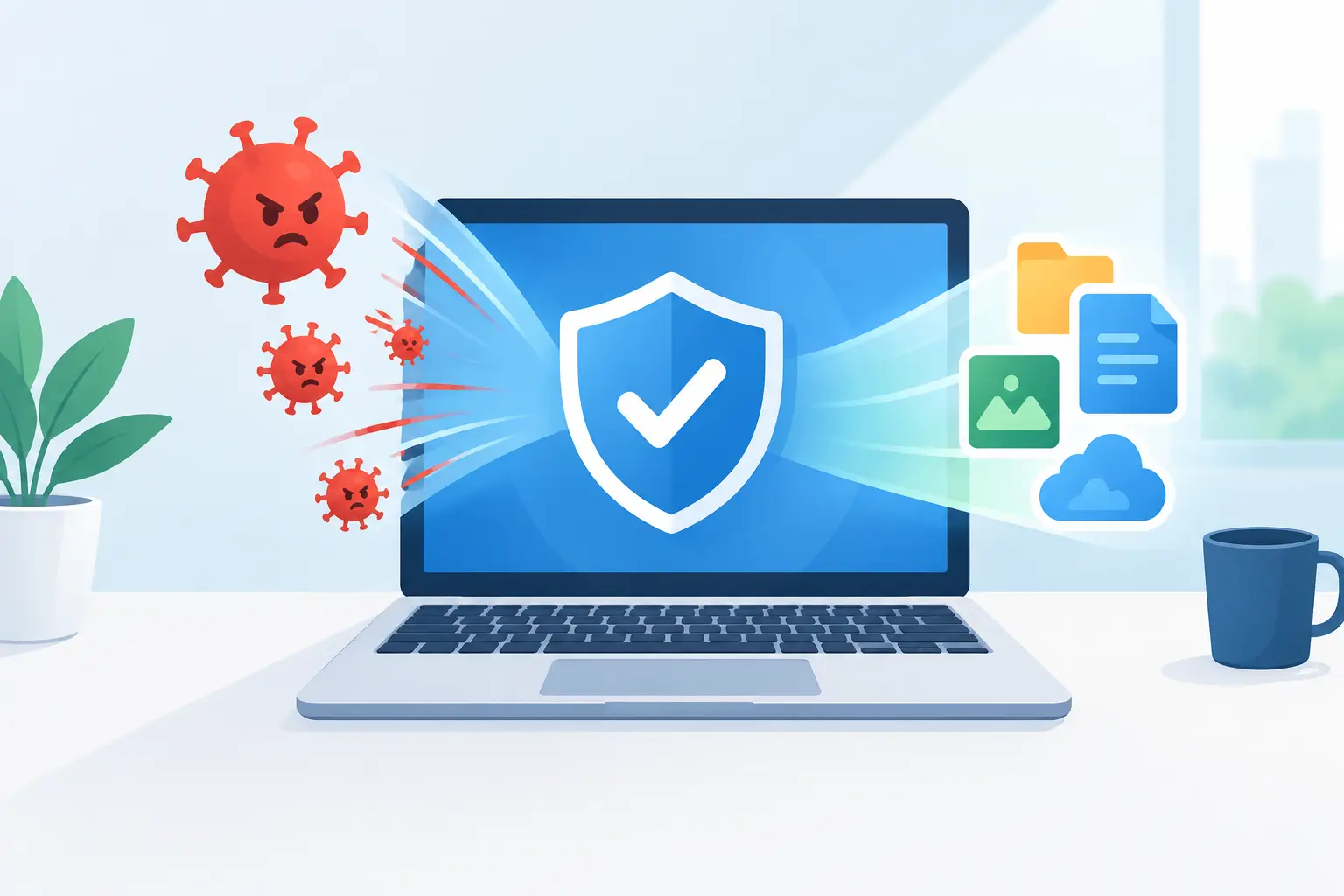
A computer that suddenly displays pop-ups, runs painfully slowly or sends strange emails can turn a normal workday into a stressful one. Knowing how to remove computer viruses safely matters because rushing to delete the wrong files can create more problems, especially when family photos, business records or important emails are stored on the device.
The right response depends on what the virus has done and whether you can still access your computer normally. A minor adware infection may be manageable with a careful scan, while ransomware, stolen passwords or repeated crashes call for a more cautious approach. The priority is to stop the infection spreading, protect your data and restore the computer without unnecessary downtime.
First, disconnect the affected computer
If you suspect a virus, disconnect the computer from the internet straight away. Turn off Wi-Fi or unplug the network cable. This can prevent malicious software from sending data out, downloading more files or spreading through a shared home or small business network.
Avoid logging into banking, email, accounting software or online shopping accounts from the affected device until it has been cleaned. If you have already entered passwords after noticing suspicious activity, change those passwords from a different, trusted device. Start with email, as it is often the key to resetting other accounts, then move on to banking, cloud storage and business systems.
For a small office, let staff know not to open unexpected attachments or click links from the affected computer. If shared folders are in use, disconnecting quickly can make the difference between one device needing attention and several devices being unavailable.
Save what you can, but do it carefully
Backups are your best protection against viruses and ransomware, but an infected computer can also copy harmful files into a backup if you are not careful. If your important files are still accessible, copy documents, photos and other personal data to an external drive. Do not copy unfamiliar programs, installers, email attachments or files with unusual names and extensions.
If you already have a recent backup from before the problem began, keep it disconnected until the computer is confirmed clean. With ransomware, do not assume that paying a demand will restore your files. Payment does not guarantee a working recovery key and may expose you to further scams. Preserve the affected device and seek professional advice before making changes that could complicate recovery.
How to remove computer viruses step by step
Once the computer is offline and your data is protected, restart it in Safe Mode where possible. Safe Mode starts Windows with only essential services, which can stop some malicious programs from running and make removal easier. On a Mac, use the relevant safe start option for your version of macOS, or restart normally while holding off on opening any unfamiliar applications.
Run a full scan using reputable, up-to-date security software already installed on the device. A quick scan is useful for a first check, but a full scan examines more files and locations where viruses often hide. Let the scan finish, even if it takes some time. Remove or quarantine any threats it identifies, then restart the computer and scan again.
A second scan can be worthwhile because some infections use multiple files or attempt to reinstall themselves after the first removal. Update the security software before scanning if you can do so safely. If the computer cannot connect without behaving oddly, or security tools will not open, stop there rather than downloading random “virus removal” programs from search results. Fake cleanup tools are a common way to make an infection worse.
After scanning, check recently installed applications and browser extensions. Remove anything you do not recognise, particularly software installed around the time the trouble started. Resetting your browser settings can also remove unwanted toolbars, altered search engines and persistent pop-up behaviour. Be careful not to delete saved passwords or bookmarks unless you have a secure copy.
Finally, install operating system, browser and software updates. Updates close security gaps that viruses can exploit. Make sure your firewall is enabled and that only one real-time antivirus product is running. Several security programs operating at once can slow the computer down and cause conflicts without making it safer.
Signs that it may be more than a simple virus
Some symptoms need a stronger response than a standard scan. Treat the situation seriously if files have changed names or become unreadable, your screen shows a payment demand, antivirus software is disabled, unknown accounts appear on the computer, or contacts receive messages you did not send.
You should also be cautious if the device repeatedly redirects websites, displays fake security warnings or remains slow after threats have been removed. These signs can point to a deeper infection, a compromised browser profile or a separate hardware or software problem. Not every slow computer has a virus. Low storage space, an ageing hard drive and too many start-up programs can produce similar symptoms, so it is worth diagnosing the cause rather than guessing.
If banking details, business credentials or customer information may have been exposed, contact the relevant bank or service provider promptly. For a business, review who has access to shared accounts and change passwords from a known-clean device. Enabling multi-factor authentication adds a useful layer of protection if a password has already been stolen.
When a clean reinstall is the safer choice
For stubborn infections, the most reliable option can be backing up verified personal files and reinstalling the operating system. This takes longer than deleting a few suspicious files, but it removes hidden threats that may have escaped detection. It is often the sensible choice after ransomware, a serious remote-access infection or repeated malware alerts.
A reinstall has trade-offs. Applications will need to be installed again, settings may need to be restored and older software may require licence details. Before proceeding, make a clear list of the programs you use, locate licence keys and confirm that your backup contains the files you need. If you are unsure whether a file is safe to restore, leave it aside until it can be checked.
For people working from home or running a small business, a clean reinstall can be less disruptive with a plan. Prioritise email access, documents, accounting software, printers and the applications needed to serve customers. This approach gets essential work moving again before less critical settings are rebuilt.
Avoid the fixes that create new problems
Virus scares make people vulnerable to scams. Be wary of unexpected phone calls claiming to be from Microsoft, your internet provider or a security company. Legitimate providers do not usually call out of the blue to say they have detected a virus on your computer, then ask for remote access or payment.
Do not install a tool simply because an alarming pop-up recommends it. Close the browser if possible, and use Task Manager or a restart if the message will not disappear. Likewise, avoid registry cleaners and aggressive “PC repair” utilities. They can remove useful settings, introduce more unwanted software or make diagnosis harder.
Keep the same problem from returning
Good protection is mostly made up of ordinary habits. Keep automatic updates switched on, use reputable security software, back up important data regularly and use unique passwords with multi-factor authentication. Be particularly careful with attachments, delivery notices, invoice emails and messages that create urgency. A familiar sender can still have a compromised account.
For households, separate user accounts can reduce the impact of a mistake, particularly where children use the same computer. For small businesses, regular backups stored separately from the main computer are essential. Test a backup occasionally too. A backup only helps if the files can actually be restored when needed.
If the infection will not clear, files are at risk or you simply want someone to check the device properly, getting hands-on help early can save time and prevent further loss. Tech Experts can provide practical on-site or remote support for Wellington, Hutt Valley and Porirua customers, helping restore a secure, working computer without the hassle of taking it to a repair shop.