
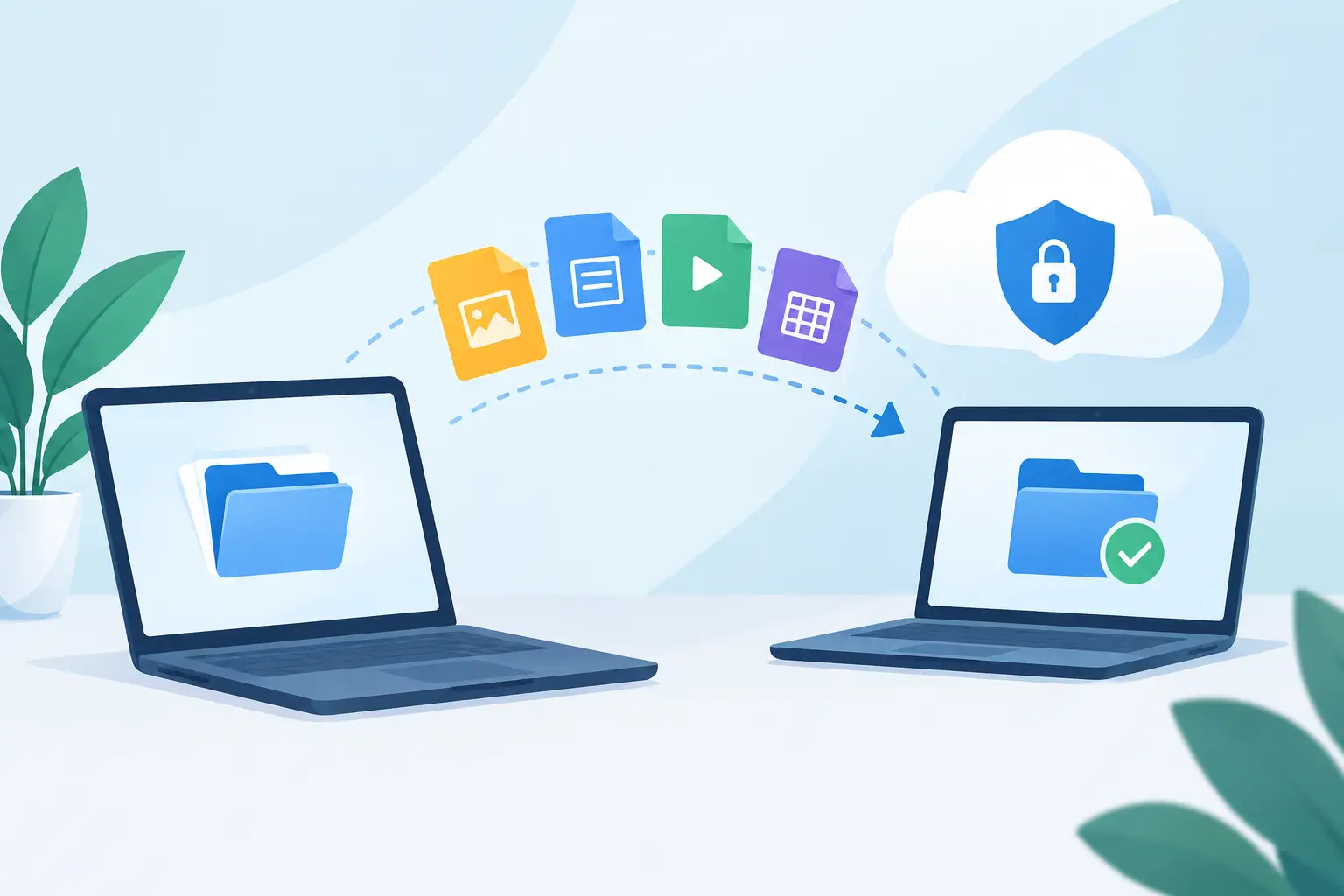
A file transfer can look finished long before it is actually safe. The progress bar reaches 100 per cent, the folder appears on the new laptop or drive, and it is tempting to delete the original straight away. That is how important photos, work documents and years of email attachments can disappear. Knowing how to move files safely means treating the transfer as a copy, check and only then remove process.
For households, this might mean moving family photos from an ageing computer. For a sole trader, it may involve transferring customer records and invoices to a replacement laptop. The risks are similar: an unstable connection, a failing hard drive, a file that did not copy properly, or a folder that was overlooked in the rush to get set up.
Start with a clear plan before moving anything
First, identify what needs to move and where it currently lives. Files are often spread across the Desktop, Documents, Downloads, Pictures, email attachments, cloud storage and external drives. A computer can also have important information stored inside programs, such as accounting software, email applications or browser bookmarks. These items may not transfer simply by copying your Documents folder.
Create a basic list of the folders and programs that matter. Include personal files, business records, photos, scans, saved passwords, email archives and any files stored on the desktop. This takes a few minutes, but it prevents the common problem of discovering a missing folder only after the old device has been wiped, sold or stopped working.
It also helps to decide on the destination. A new computer, external drive, network storage and cloud account all suit different situations. An external drive is usually fast and practical for a large one-off transfer. Cloud storage is useful when you need files available on several devices, but it can take time and relies on a stable internet connection. For very large photo libraries or business folders, copying locally first is often the safer option.
Make a second copy before you transfer
A transfer is not a backup unless another safe copy remains available. Before moving files, create a backup on a separate external drive or trusted cloud service. If the original computer is showing warning signs such as freezing, clicking noises, files that will not open or repeated error messages, avoid unnecessary use and back it up promptly.
This step matters because drives can fail without much warning. A laptop that still turns on today may struggle tomorrow, particularly if it has been dropped, overheated or is simply getting old. If the files are irreplaceable, do not rely on one device or one transfer method.
For a small business, it is worth checking that the backup includes more than documents. Export or back up data from accounting, customer management and specialist software according to the program’s own backup process. Copying the program folder alone may not bring across its database, settings or licence details.
How to move files safely with an external drive
An external hard drive or solid-state drive is a practical choice when moving a large amount of data between computers. Use a drive with enough free space, and check it is formatted to work with both the old and new device if they use different operating systems.
Copy files to the external drive rather than dragging them in a way that removes them from the source. On most computers, copy and paste is the safer habit. Keep the original folders untouched until the transfer has been checked in full.
During the copy, leave both devices powered on and avoid disconnecting the drive. A laptop should be plugged into power where possible, especially for a large transfer. Do not bump the cable, put the external drive under papers where it may overheat, or use a loose USB connection. If a transfer appears to stall, give it time before cancelling it. Large video files and folders containing thousands of small files can take longer than expected.
When the copy has completed, use the system option to safely eject the external drive before unplugging it. Pulling out a drive while it is still writing data can corrupt files or the drive itself.
Check folders, file counts and a sample of files
Do not assume a folder is complete because it has the right name. Open the copied folder on the new computer and compare its size and number of files with the original where possible. Then open a sensible sample: recent documents, older photos, PDFs, spreadsheets, videos and any files that are especially important.
For business data, open the files using the programs you will actually use day to day. A file can be present but still not open correctly if the required software, font, add-on or permissions are missing. This is also the time to check that scanned documents are readable and that folders have not become nested in the wrong location.
Take extra care with cloud storage
Cloud services can make moving files easier, but they can also create confusion. A folder may look available on the new computer when only its shortcuts or file names have downloaded. If your connection drops, synchronisation may pause without being obvious.
Before relying on cloud storage as your transfer method, confirm that all files have finished uploading from the old device. Look for sync status messages and make sure there are no errors or files waiting to upload. On the new device, wait for the files to download fully before opening, editing or removing anything from the old computer.
Be careful with deletions. Many cloud services synchronise deletions as well as additions. If you delete a folder from one device before checking the new setup, it may disappear everywhere. Keep a separate backup until you are confident the transfer is complete.
Cloud storage is a strong option for documents, spreadsheets and current work files. It may be less convenient for hundreds of gigabytes of video, old photos or archive material, depending on your internet speed and storage allowance. In those cases, an external drive plus a cloud backup for priority files can be a sensible combination.
Do not forget email, passwords and program data
Some of the most frustrating missing items are not ordinary files. Email may be stored on a mail provider’s server, locally on the computer, or both. If you use an email program with local archives, check that those archives are included and that the account can be accessed on the new device.
Passwords deserve particular care. Do not save a password list as an unprotected document on a USB drive. If you use a password manager, confirm that you can sign in on the new device before removing the old one. If passwords are saved only in a browser, make sure browser sync is enabled and working, or export them securely if appropriate.
Browser bookmarks, desktop notes, templates, printer settings and software licence keys can also be overlooked. Not every setting needs to be moved, but identifying the ones that save you time will make the new computer feel ready sooner.
Keep the old device unchanged for a short period
Once the new computer is working, resist the urge to immediately reset the old one. Keep it intact and securely stored for at least a few weeks, or until you have completed normal work tasks and confirmed that everything you need is available. This gives you a safety net for files that were stored in an unusual place or only noticed when a specific task comes up.
When you are ready to dispose of, sell or give away the old device, sign out of accounts and erase it properly. Deleting visible files is not enough to protect personal or business information. If the device is failing or you are unsure how to erase it securely, get advice before passing it on.
When it is better to get help
A straightforward transfer is manageable when both devices are healthy and the files are organised. It becomes riskier if the old computer will not start, the drive makes unusual noises, files are missing, data is encrypted, or a business depends on specialised software. Repeated attempts to restart a failing drive can make recovery more difficult.
Tech Experts can assist with careful data transfers, new computer setup and recovery planning for homes and small businesses across Wellington, Hutt Valley and Porirua. On-site help is particularly useful when you want someone to check the files with you, reconnect printers and email, and make sure the new setup is ready for work.
The safest transfer is rarely the fastest one. Leave the original in place, verify what arrived, and keep a backup that is separate from both devices. Those few extra checks are what turn a completed transfer into a dependable one.