
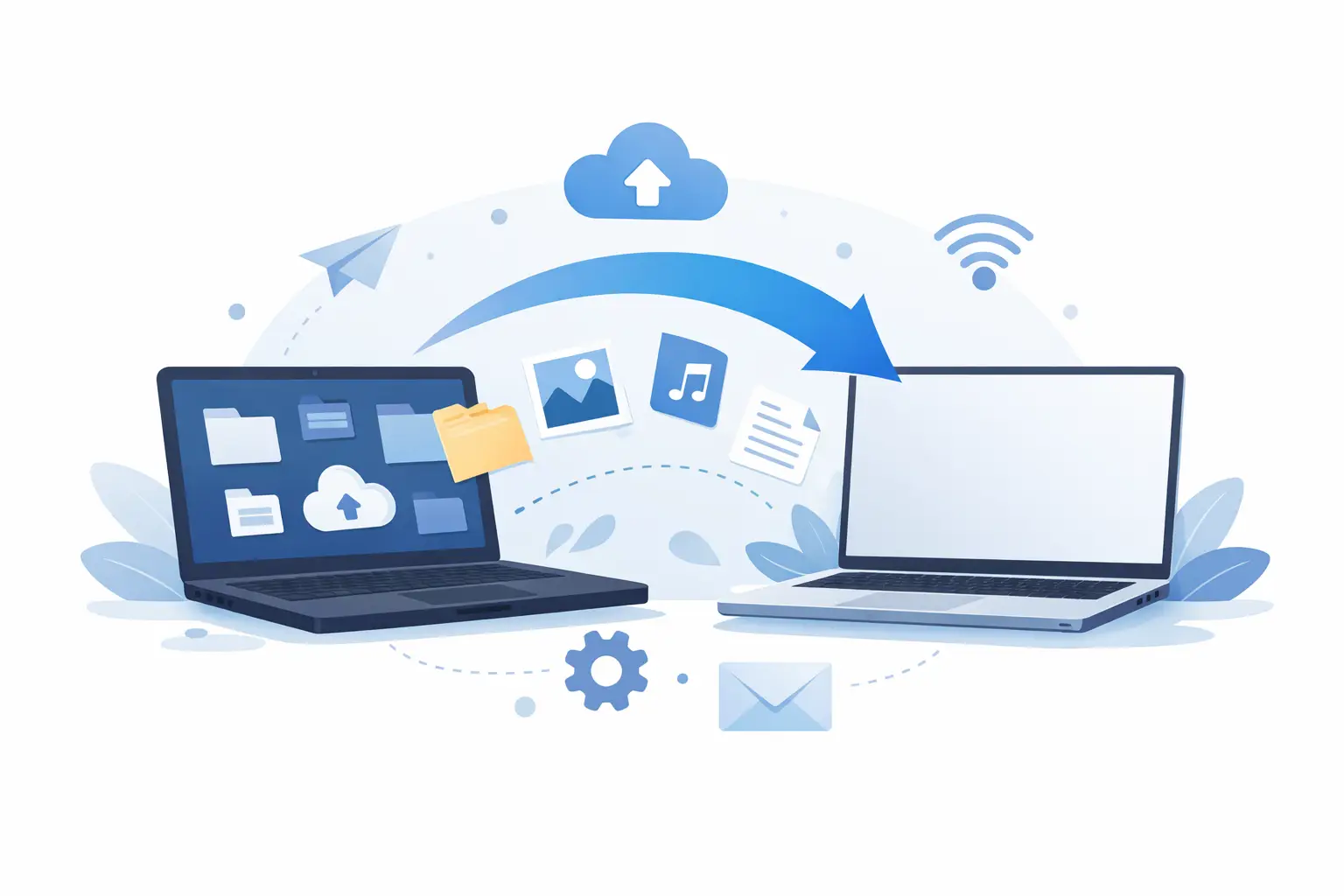
A new laptop should feel like an upgrade, not a weekend-long clean-up job. If you need to transfer data to new laptop devices without losing files, emails, photos or settings, the best method depends on how much data you have, how old the old machine is, and how quickly you need to get back to work.
For some people, a cloud sync and a USB drive are enough. For others, especially small business owners or remote workers, a rushed transfer can mean missing email archives, broken software, or folders saved in places you forgot existed. That is why it pays to choose the method before you start clicking.
The best way to transfer data to new laptop devices
There is no single right answer here. The safest option is usually a combination of backup first, transfer second, then checking everything before you wipe or retire the old laptop.
If your old laptop still works properly, you have more options. You can copy files manually, use cloud storage, transfer over a local network, or use an external hard drive. If the old laptop is slow, damaged, or failing, the priority changes. In that case, getting the data off quickly and safely matters more than doing a neat one-step migration.
A good transfer usually includes more than documents and photos. Many people forget browser bookmarks, desktop files, downloads, saved passwords, accounting files, email data files, and application settings. Those are often the things that cause frustration later.
Start with a backup before anything else
Before you transfer anything, make a full backup of the old laptop. This is the step people skip when they are in a hurry, and it is usually the one they regret.
A backup gives you a safety net if a file gets overwritten, a transfer fails, or the old drive suddenly stops responding. You do not need to overcomplicate it. An external drive or a reliable cloud backup can be enough, as long as you can confirm the files are actually there and readable.
If the laptop is making unusual noises, freezing, or taking a long time to open folders, treat it as a warning sign. Do the backup first and avoid unnecessary restarts.
What you should move to your new laptop
When people say they want to transfer everything, they usually mean the parts of their digital life they actually use. That includes personal files, work folders, photos, videos, music, email archives, browser bookmarks, passwords, software licence details, and any templates or forms you rely on.
It may also include printer settings, accounting software files, local databases, saved scans, and anything stored on the desktop. Desktop folders are especially easy to forget because they are visible every day, but not always included in simple sync setups.
Applications themselves often need a separate approach. Some software can just be reinstalled and signed into again. Others need product keys, manual activation, or data files copied from a specific folder. If you use older software for business, check compatibility with the new laptop before the old one is retired.
Using an external drive for a straightforward transfer
For many home users, an external hard drive or large USB drive is the simplest method. Copy the key folders from the old laptop, connect the drive to the new one, and paste them into the right locations.
This works well when you want control and you know where your files are stored. It is also useful when internet speeds are slow or cloud storage limits get in the way.
The trade-off is that manual copying can miss hidden or less obvious data. If your files are scattered across Documents, Downloads, the desktop, and a few odd folders created by software, you need to be methodical. It is easy to think the job is done until you realise your invoice template or scanned contracts never made it across.
When cloud storage makes more sense
If you already use OneDrive, Google Drive, Dropbox or iCloud, cloud storage can make the move easier. Files that are already synced may appear on the new laptop once you sign in and let everything finish downloading.
This is convenient, but it is not always complete. Cloud platforms often sync selected folders rather than the whole computer. Large video files, offline email archives, old project folders, or software data may still sit only on the old machine.
Cloud transfer is best for current working files and day-to-day documents. It is less reliable as the only method if you want a full handover with minimal surprises.
How to transfer data to new laptop over your network
If both laptops are working and connected to the same home or office network, you can transfer files directly between them. This can be faster than uploading everything to the cloud and downloading it again, especially for large folders.
The setup can be a bit fiddly if file sharing is not already enabled. Permissions, user accounts, and firewall settings can get in the way. For confident users, it is efficient. For everyone else, it can turn a simple file copy into an afternoon of troubleshooting.
This method is usually worth considering when you have a lot of data and both laptops are in the same place. If time matters more than doing it yourself, having someone handle the transfer on-site can save a lot of mucking about.
What about Windows migration tools?
Windows offers some built-in options for syncing settings and signing into a new device with the same Microsoft account. These can help with preferences, browser details, and some account-linked data, but they do not replace a proper file transfer plan.
Older migration tools that once made this easier are no longer as central as they used to be. These days, moving to a new laptop often means combining Microsoft account sync, cloud storage, and manual transfer.
That is workable, but it also creates gaps. You may get your wallpaper and browser tabs back, yet still miss your local email file or job management spreadsheet.
Common mistakes when moving to a new laptop
The biggest mistake is assuming everything important lives in Documents. Plenty of files do not. Downloads, desktop shortcuts linked to real folders, local app data, and exported reports are often stored elsewhere.
Another common problem is installing software on the new laptop before locating the old data. Some programs create fresh blank data files, which can then overwrite or confuse the old ones during import.
Passwords are another trap. If you rely on your browser to remember logins, make sure those passwords are synced or exported before you hand over the old laptop. The same goes for saved email account settings, especially if the account was set up years ago and nobody remembers the password.
Finally, do not wipe the old laptop too soon. Keep it untouched until you have checked the new one properly for a few days.
A simple way to check the transfer worked
Once the files are moved, open a sample of everything important. Do not just look at folder names. Open documents, photos, spreadsheets, PDFs, and email folders to confirm they are usable.
Sign into key websites. Check bookmarks. Open accounting or invoicing software. Print a test page if the laptop connects to a printer. If you work from home, test your webcam, microphone, and any shared drives before your next workday starts.
This checking stage is where you catch the small issues that become big annoyances later.
When professional help is the better option
If the old laptop is failing, the data is business-critical, or you simply do not have time to sort through years of files, getting help is often the cheaper option in the long run. A botched transfer can cost more in downtime than the support itself.
This is especially true for small businesses, sole traders, and remote workers who rely on email history, client files, saved templates, and software set up a certain way. The transfer is not just about moving folders. It is about getting you working again without the usual loose ends.
For customers around Wellington, Hutt Valley and Porirua, practical support can make the process a lot less stressful, particularly when the job needs to happen at home or in the office rather than dragging devices across town.
A new laptop should give you a fresh start, not leave you chasing missing files three days later. If you take the time to back up first, choose the right transfer method, and check the result properly, the move is usually far smoother than people expect.