
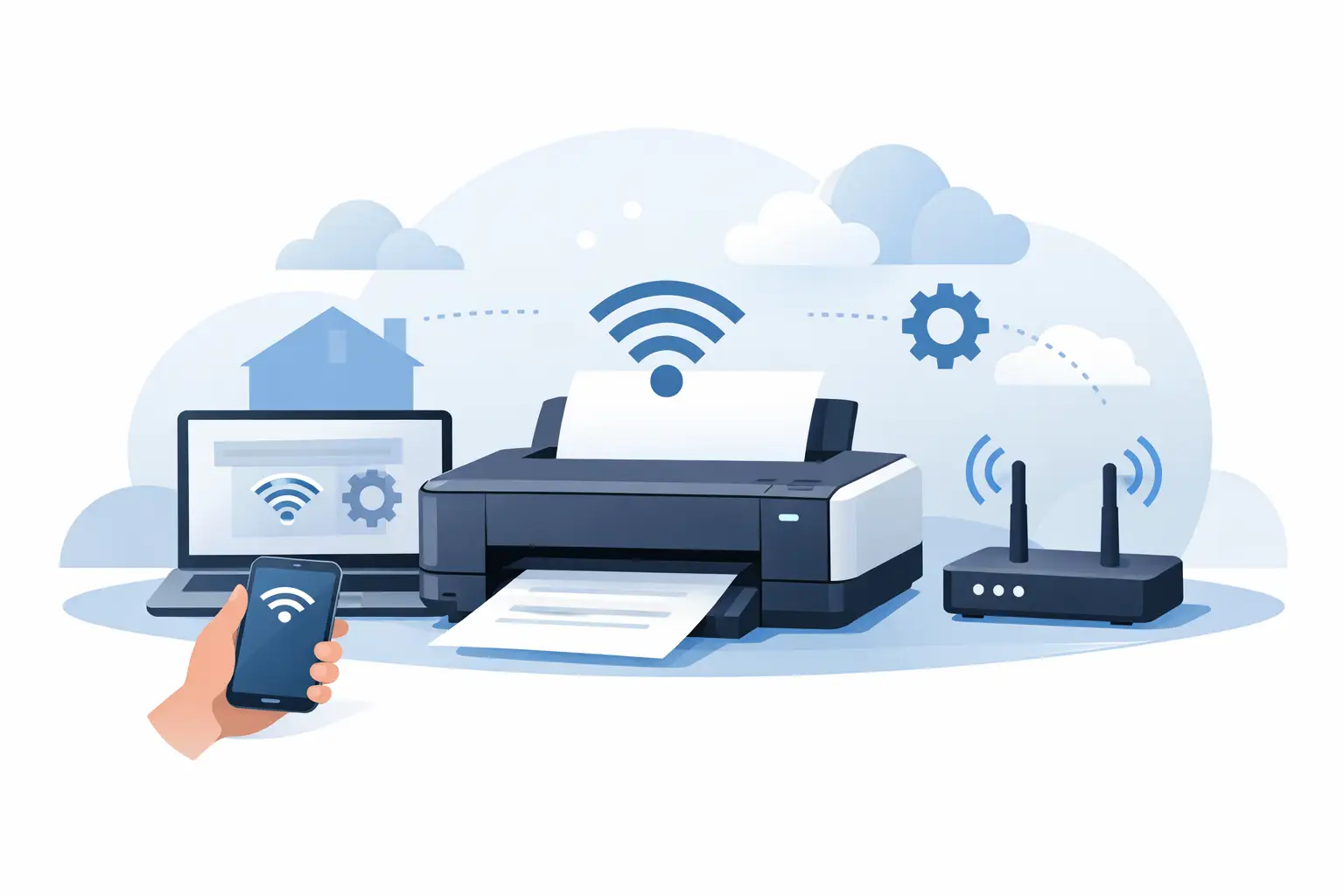
A printer can be sitting right beside the router and still refuse to print the one document you need before a meeting. The good news is that learning how to set up printer wifi is usually straightforward once you use the right connection method for your printer and network. Most problems come down to one small detail: the wrong Wi-Fi band, an outdated printer setting, or software that has not been installed on the computer.
For households, remote workers and small businesses, a wireless printer means anyone approved on the network can print without moving cables or emailing files between devices. It is convenient, but it does need a little setup work at the start.
Before You Set Up Printer WiFi
Start by checking that your Wi-Fi connection is working on another device, such as a laptop or mobile. If the internet is down or your router is restarting regularly, deal with that first. A printer cannot join a network that is not stable.
Keep the printer close to the router while setting it up, particularly if it is in a back room, garage office or separate workspace. Once connected, you can move it to its usual spot, but avoid placing it behind large metal cabinets or where the signal is weak. Poor Wi-Fi is often mistaken for a printer fault.
You will also need the exact Wi-Fi network name and password. This is the password for your wireless network, not the password you use for email or online banking. If the router label has been changed or the details are unknown, check a device that is already connected to the network.
Many newer routers offer both 2.4 GHz and 5 GHz Wi-Fi networks. A large number of printers only support 2.4 GHz. If your printer cannot see the network name, or connects but drops out, this is one of the first things to check. The 2.4 GHz band is generally slower but travels further, which suits printers well.
How to Set Up Printer WiFi: Choose the Right Method
The best setup method depends on the printer model. Your printer screen, quick-start guide or manufacturer app will usually point you in the right direction. There are three common ways to connect.
Use the printer’s control panel
Printers with a display screen often let you connect directly. On the printer, look for Settings, Network, Wireless Setup Wizard or a Wi-Fi symbol. Select your network from the list, enter the Wi-Fi password carefully, then wait for a connection confirmation.
Take your time with the password. Printer touchscreens can be fiddly, and a single incorrect capital letter, number or symbol will stop the connection. If the password is long, it can be easier to temporarily use the manufacturer’s mobile app instead.
When the printer shows it is connected, print a network status page if that option is available. This confirms the network name and gives you the printer’s IP address, which can be useful if troubleshooting is needed later.
Use WPS for a quick connection
WPS, short for Wi-Fi Protected Setup, can connect a printer without typing the password. It only works if your router has a WPS button and the feature is enabled.
On the printer, choose the WPS connection option. Then press the WPS button on your router within the time shown on the printer screen, usually two minutes. The Wi-Fi light on the printer should stop flashing or display a connected message once the setup is complete.
WPS is handy, but not every router supports it and some people prefer to leave it disabled for security reasons. If it does not work promptly, use the control panel or app method instead rather than repeatedly trying the same process.
Use the manufacturer’s mobile app or computer software
Most printer brands provide a setup app for mobile devices and software for computers. These tools can find the printer, guide it onto Wi-Fi and install the correct print driver at the same time.
During setup, your mobile or computer must be connected to the same home or office Wi-Fi network you want the printer to join. Follow each prompt in order. The app may ask permission to find devices on your local network – allow this, otherwise it may not detect the printer.
This method is often the easiest choice for printers with no screen. The printer may create a temporary setup network that your mobile connects to for a minute before passing across your usual Wi-Fi details.
Add the Printer to Your Devices
Connecting the printer to Wi-Fi is only half the job. Each computer, tablet or mobile that needs to print must also be able to find it.
On a Windows computer, open Settings, then go to Bluetooth & devices and Printers & scanners. Choose Add device and wait for the printer to appear. Select it and let Windows install the driver. If it is not listed, install the printer manufacturer’s software, which can often locate it more reliably.
On a Mac, open System Settings, choose Printers & Scanners, then add the printer with the plus button. Select the printer from the available devices and confirm the recommended driver or AirPrint option.
For mobiles and tablets, printing is commonly available from the Share menu inside an app. Look for Print, select the printer and check the page range before sending the job. Apple devices generally use AirPrint, while Android devices may use the printer maker’s app or built-in print service.
Once the printer is added, send a simple test page. Do not begin with a 50-page report or a colour-heavy brochure. A one-page document tells you whether the device is visible, the driver is working and the printer has paper and ink.
Common Printer Wi-Fi Problems and Practical Fixes
If a printer was connected yesterday but is offline today, restart the printer first. Turn it off at the power point, wait 30 seconds, then switch it back on. Restart the router only if other devices are also having connection problems.
A printer may go offline after a router replacement, a broadband upgrade or a Wi-Fi password change. In that situation, it still remembers the old network details. Return to the printer’s wireless settings, remove or reset the previous network connection, and run the setup again.
If the printer is connected but your computer says it is offline, make sure both devices are on the same network. It is easy for a laptop to join a guest network while the printer remains on the main network. Guest networks are designed to keep devices separate, so printing between them will usually fail.
Also check whether a VPN is active on the computer. Some VPN services prevent a computer from finding local devices such as printers. Temporarily disconnect the VPN, try printing again, then adjust the VPN settings if needed.
When the printer appears but jobs remain stuck in the queue, cancel all pending jobs and restart the computer and printer. On shared office printers, a single damaged print job can hold up every document behind it.
For repeated dropouts, give the printer a more reliable spot or consider a mesh Wi-Fi unit near the work area. A wired Ethernet connection can be a better option for a busy small business printer, especially where invoices, labels or customer documents need to print consistently. Wi-Fi is convenient; a cable is sometimes the more dependable choice.
Keep the Connection Reliable and Secure
Use a strong Wi-Fi password and avoid connecting a business printer to an open guest network. If several people use the same printer, keep the router and printer firmware updated when updates are offered. These updates can fix connection issues as well as security weaknesses.
It also helps to leave the printer switched on if it is used throughout the day. Some printers enter a deep sleep mode that makes them slow to wake, while others can lose their network connection after long periods off. The right setting depends on how often you print and how much power saving matters to you.
If setup still feels like more time than you can spare, particularly when a home office or small business needs to keep moving, getting hands-on help can save a frustrating afternoon. Tech Experts can assist on-site across Wellington, Hutt Valley and Porirua, or provide remote guidance where suitable. A correctly connected printer should fade into the background – ready when you need it, rather than becoming the day’s next job.