
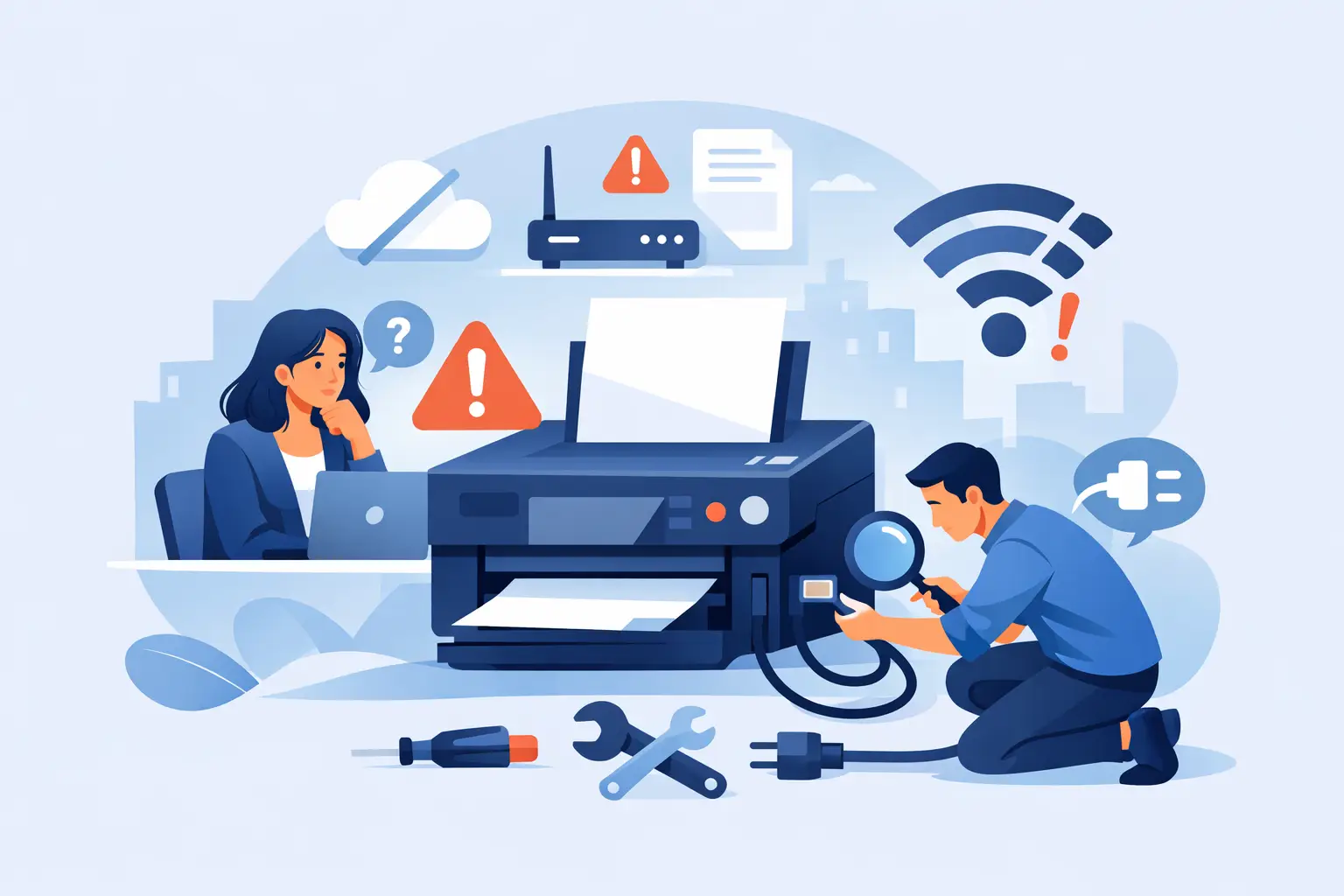
Few things derail a workday faster than hitting Print and getting absolutely nothing back. If you’re asking, “why won’t my printer connect”, the good news is that this problem is usually caused by a handful of common issues – and most of them can be sorted without replacing the printer.
The trick is not trying ten random fixes at once. Printer problems tend to sit in one of three places: the printer itself, the device you’re printing from, or the network connecting the two. Once you narrow that down, the solution gets much easier.
Why won’t my printer connect to Wi-Fi or your computer?
When a printer refuses to connect, it often looks like one problem but has different causes underneath. A home user might be dealing with a weak Wi-Fi signal in the back room. A small business might have changed internet providers and forgotten that the printer was still set up on the old network. A remote worker might simply have the printer set to Offline after a Windows update.
That’s why it helps to start with the basics instead of jumping straight into driver installs or factory resets.
First, check whether the printer is powered on and showing any warning lights or messages. It sounds obvious, but printers often appear “on” while sitting in an error state because of low paper, a paper jam, an open tray, or an ink issue. If the printer screen shows an error, fix that first. A printer with a hardware error usually will not reconnect properly until the fault is cleared.
Next, confirm how the printer is supposed to connect. Some are connected by USB, some by Wi-Fi, and some through Ethernet. If you are troubleshooting the wrong type of connection, you can waste a lot of time. A USB printer won’t suddenly appear on the network, and a Wi-Fi printer won’t work reliably if it was never properly joined to the wireless network.
The most common reasons your printer won’t connect
Wi-Fi is the biggest trouble spot for most households and small offices. If your internet is working on your laptop or mobile but the printer still won’t connect, the issue is often one of these.
The printer may be connected to the wrong Wi-Fi network. This happens a lot after changing routers, passwords, or internet providers. Many printers do not automatically move to the new network. They stay linked to the old one until you reconnect them manually.
Signal strength can also be the problem. Printers are often tucked into spare rooms, corners, or cabinets where the wireless signal is weaker. A laptop might cope with a poor signal, but a printer may drop in and out or fail to stay connected at all.
Then there’s the IP address issue. On some networks, the printer’s address changes and the computer keeps looking for the old one. To you, it looks like the printer has vanished. To the computer, it’s still trying to talk to an address that no longer belongs to the printer.
Drivers are another common cause. If your computer has the wrong printer driver, an old one, or a corrupted one, the printer may show as installed but never connect properly. This is especially common after system updates, replacing a computer, or switching between Windows and Mac devices.
Finally, the print queue itself can jam up. One failed print job can block everything behind it. In that case, the printer may be fine, but your device keeps insisting nothing can be sent.
Start with the fastest checks first
If you want the quickest path back to printing, begin with a simple restart. Turn off the printer, restart your computer, and if it’s a Wi-Fi printer, reboot the router as well. Then power everything back on and give it a minute or two. It’s a plain fix, but it clears more connection issues than people expect.
After that, check whether the printer shows as online. On Windows, open your printers list and see if it says Offline or Paused. If it does, clear that setting. On a Mac, remove any stuck jobs and confirm the printer is available rather than idle with an error.
If the printer is connected by USB, unplug the cable and reconnect it firmly. Try a different USB port if needed. Faulty cables and loose connections are more common than most people think, especially if the printer gets moved around.
If the printer is on Wi-Fi, print or view the network status from the printer screen if that option is available. You’re looking to confirm that it is actually connected to your current network, not one you used six months ago.
When the problem is the network
A lot of people ask why won’t my printer connect when the real issue is that the printer and computer are on different networks. This is common in homes and small offices with both a main Wi-Fi network and a guest network. If your computer is on one and the printer is on the other, they may not be able to see each other.
Mesh Wi-Fi systems can add another wrinkle. They usually improve coverage, which is good, but some printers struggle with certain wireless settings or with moving between access points. If the printer keeps dropping off, it may help to place it closer to the main router or reconfigure it on a stable 2.4 GHz connection if your model supports that better than 5 GHz.
Security settings can get in the way too. After a router change, older printers sometimes don’t like newer encryption settings. That doesn’t always mean the printer is unusable, but it may need to be set up again with the correct network options.
When the problem is your computer or mobile device
Sometimes the printer is connected perfectly well, but the device you’re printing from is the part causing trouble. This often shows up when one laptop can print and another cannot. That tells you the printer and network are probably fine.
In that case, remove the printer from your device and add it again. This refreshes the connection and often corrects stale settings. If you have the option to install the full driver package rather than a generic one, that can help with scanning features and paper settings as well.
On mobiles and tablets, make sure you’re using the correct print method for the device. Some apps don’t play nicely with certain printers, and sometimes printing works from one app but not another. If the printer appears on one device but not another, compare their Wi-Fi connection first before assuming the printer is at fault.
Should you reset the printer?
A full reset can work, but it’s not always the best first move. Resetting wipes settings and means you’ll need to reconnect the printer from scratch. That’s fine if the setup is simple. It’s less fine if the printer is shared across several devices, uses scan-to-email, or has custom paper settings.
A reset makes sense when the printer keeps holding onto an old network, refuses to accept the new password, or has clearly confused settings after multiple failed attempts. If you do reset it, make sure you have the new Wi-Fi name and password ready before you start.
When it’s worth getting help
There’s a point where printer troubleshooting stops being a five-minute fix and starts eating into your day. If you’ve restarted everything, confirmed the Wi-Fi, cleared the queue, and re-added the printer but it still won’t connect, the issue may be more specific – such as driver conflicts, network discovery problems, firewall settings, or a printer hardware fault.
That’s often where practical support saves time. For households, it means getting the printer working without spending the evening buried in settings menus. For small businesses, it means less downtime and less frustration for staff trying to share one printer across multiple devices. A local service such as Tech Experts can sort out printer and scanner setup on-site or remotely, which is often quicker than trial and error.
A better way to avoid the same problem next month
Once the printer is working again, it’s worth doing a small bit of housekeeping. Keep a note of the printer model, the network it uses, and whether it connects by USB or Wi-Fi. If you change routers or internet providers, remember that the printer may need to be reconnected too.
It also helps to keep drivers current and avoid installing the same printer multiple times under slightly different names. That can create confusion later when your computer tries to print to an old version instead of the active one.
Printers can be fussy, but they’re usually not mysterious. Most connection problems come down to a wrong network, stale settings, a driver issue, or a simple device error. Work through those calmly, one at a time, and you’ll usually get back to printing far faster than you expect.