
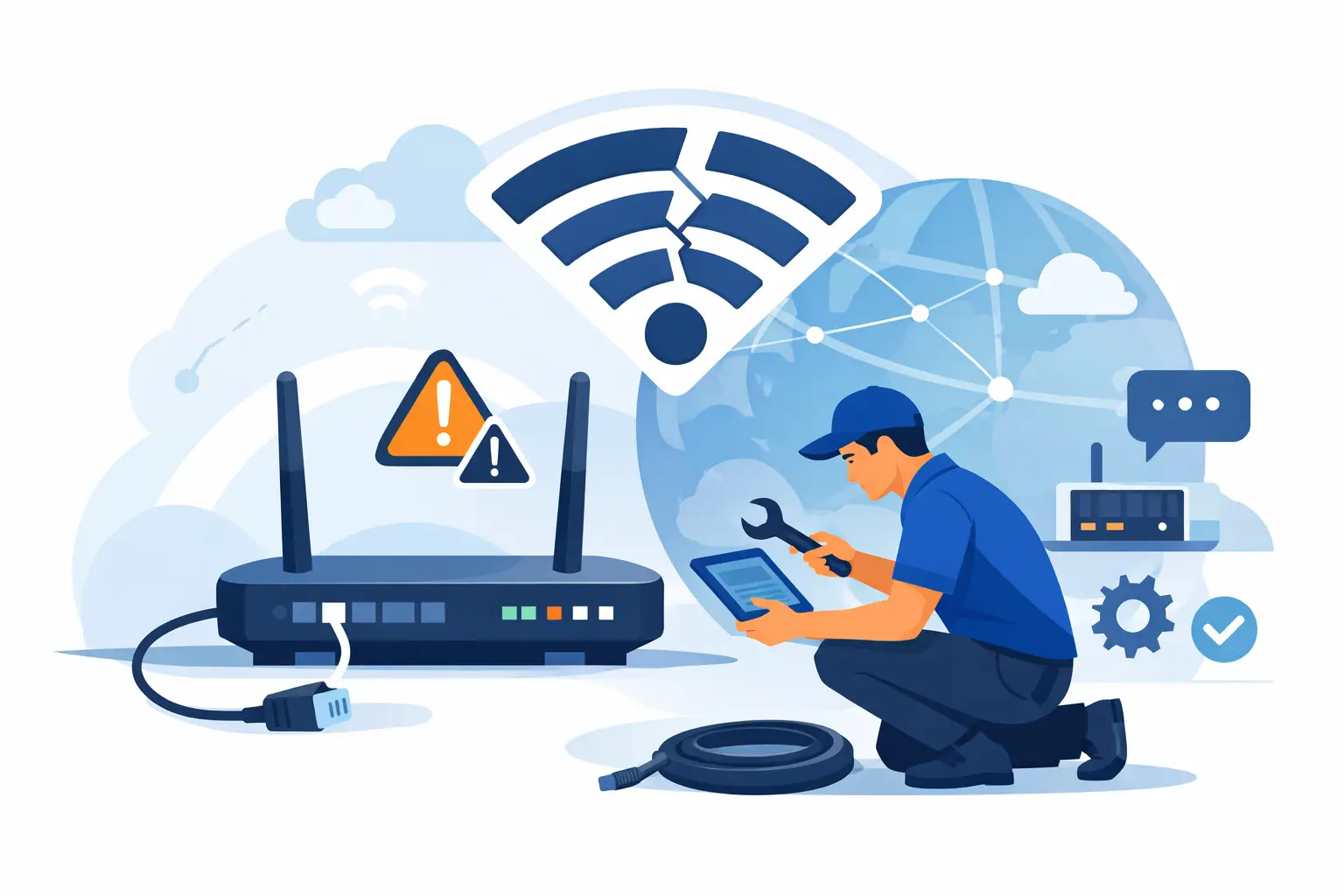
A video call freezes just as you need to speak, EFTPOS drops out during a sale, or every website suddenly refuses to load. When you need to fix internet connection issues, the priority is not learning network jargon. It is working out whether the fault is with one device, your Wi-Fi, your router, or the provider – then taking the right next step without making the problem worse.
Most connection problems can be narrowed down in a few minutes. The key is to test one thing at a time, rather than restarting every device in the house and hoping for the best.
Start by identifying what is not working
Before changing any settings, check the scope of the problem. Can other devices connect to the internet? Does your mobile work on mobile data but not on your home Wi-Fi? Is the issue limited to one website, one app, or one computer?
If every device has lost access, the problem is likely with the router, modem, NBN connection, power supply, or an outage. If one laptop or phone cannot get online while everything else is fine, the cause is usually on that device. This distinction saves a great deal of time.
For a small business, also check whether wired computers, payment terminals, cloud phones and printers are affected. A Wi-Fi fault and a full internet outage have different causes, and they need different fixes.
Check for an outage before troubleshooting
Internet providers occasionally have service faults, planned maintenance or local network disruptions. Severe weather, road works and power interruptions can also affect equipment in the area.
Use mobile data on your phone to check your provider’s service status page or contact its support line. If there is a confirmed outage, repeatedly rebooting the modem will not restore the service. Make a note of the outage reference, use mobile data sparingly if needed, and wait for the provider’s update.
If no outage is reported, look at the modem or router lights. Their labels differ between models, but a normal connection usually shows solid power and Wi-Fi lights, plus an internet, WAN, DSL or NBN light that is solid or blinking normally. A red light, no internet light, or a light that keeps flashing in an unusual pattern can point to a line or hardware issue.
How to fix internet connection issues with a safe restart
A proper restart is one of the most useful first steps, provided you do it in the right order. Do not press the small reset button on the back of the router. That factory-resets the device and can erase the connection settings your provider installed.
Instead, switch off the modem/router at the power point. If you have a separate NBN box, switch that off as well. Leave both off for at least 60 seconds. Turn the NBN box back on first and wait until its connection lights settle. Then turn the router on and allow several minutes for it to reconnect.
Test the connection with one device close to the router. If it works again, reconnect other devices gradually. If the issue returns only when a particular device joins the network, that device may be consuming a large amount of bandwidth or causing a network conflict.
Restart the affected computer or mobile too. Devices can hold onto an old network address or a failed connection session, particularly after an update, a power cut or moving between home and work networks.
Rule out a Wi-Fi signal problem
A working internet service does not always mean usable Wi-Fi in every room. Thick walls, older buildings, metal appliances, large mirrors and distance from the router can weaken the signal. You may notice this as slow loading, video buffering or a connection that drops out in a back bedroom, garage office or meeting room.
First, move closer to the router and test again. If the connection improves significantly, the issue is coverage rather than the internet service itself. Try placing the router in an open, central position, raised off the floor and away from cordless phone bases, microwaves and cabinets. Avoid hiding it in a cupboard simply because the cables look untidy.
Many routers offer both 2.4 GHz and 5 GHz Wi-Fi bands. The 2.4 GHz band generally reaches further but can be slower and more crowded. The 5 GHz band is usually faster close by, but has shorter range. For a home office near the router, 5 GHz can be a good choice. For a device several rooms away, 2.4 GHz may be more dependable.
A mesh Wi-Fi system or access point can improve coverage in larger homes and small premises, but it is not always the first purchase to make. If the incoming service is faulty or the router is poorly positioned, adding more equipment may only hide the underlying problem.
Test with a cable if possible
Connecting a laptop directly to the router with an Ethernet cable is a simple way to separate Wi-Fi faults from broadband faults. If the wired connection is reliable but wireless devices keep dropping out, focus on the router’s Wi-Fi settings, placement or age.
If a wired device also cannot reach the internet, the problem is more likely to be the modem, router, NBN equipment, cabling or provider connection. Check that network cables are firmly seated and not damaged, especially if furniture has recently been moved or a cleaner has worked around the desk.
For businesses that rely on stable video calls, cloud software or payment systems, wired connections are often worth using for fixed desks and critical equipment. Wi-Fi is convenient, but a cable removes the uncertainty of signal strength and local interference.
Check the device before blaming the router
When only one device is offline, forget the Wi-Fi network on that device and join it again using the correct password. Check that aeroplane mode is off, Wi-Fi is enabled and the device has not connected to a neighbour’s network or an old hotspot by mistake.
On a computer, temporarily disconnect any VPN. A VPN can be essential for secure remote work, but a failed VPN session can make it appear that the whole internet connection is down. If websites work once the VPN is disconnected, the next task is to check the VPN settings or contact the workplace IT provider.
Also consider recent changes. A new security program, operating system update, router replacement or changed provider password can all interrupt connectivity. Avoid changing advanced settings such as DNS, firewall rules or router channels unless you know why you are changing them. Those settings can help in specific cases, but random changes often create a second problem.
When slow internet is the real issue
A connection can be technically online yet still be too slow to be useful. Before running speed tests repeatedly, pause large downloads, cloud backups, game updates and streaming on other devices. A household connection is shared, and one busy device can affect everyone.
Test at different times of day and compare a wired result with Wi-Fi. Consistently poor wired speeds may indicate a plan limitation, line issue or provider fault. Poor Wi-Fi speeds only in certain rooms point more towards coverage or interference.
For a business, check whether the issue began when more staff started working remotely, using cloud applications or backing up data. The existing plan may have suited a smaller workload but no longer match the way the business operates. Upgrading can help, though it will not solve weak in-building Wi-Fi.
Know when to call for help
Contact your internet provider when the modem shows an internet or NBN fault light, a wired connection fails after a proper restart, or there is damage to the service cable or NBN equipment. They are responsible for the service reaching your premises and can test the line remotely.
Local IT support is useful when the provider says the connection is active but your home or business network still is not working properly. This often involves router setup, Wi-Fi coverage, device connection problems, printer access, network security or getting a new modem configured correctly.
Tech Experts can provide on-site or remote assistance for customers in Wellington, Hutt Valley and Porirua, helping remove the guesswork without requiring you to pack up equipment and take it to a shop.
Keep a short record of what happened, which devices were affected, what the modem lights showed and what you had already tried. That information makes any support visit or provider call faster, more affordable and far less frustrating. A reliable connection is rarely about one clever trick – it comes from checking the right layer of the problem and fixing it with care.