
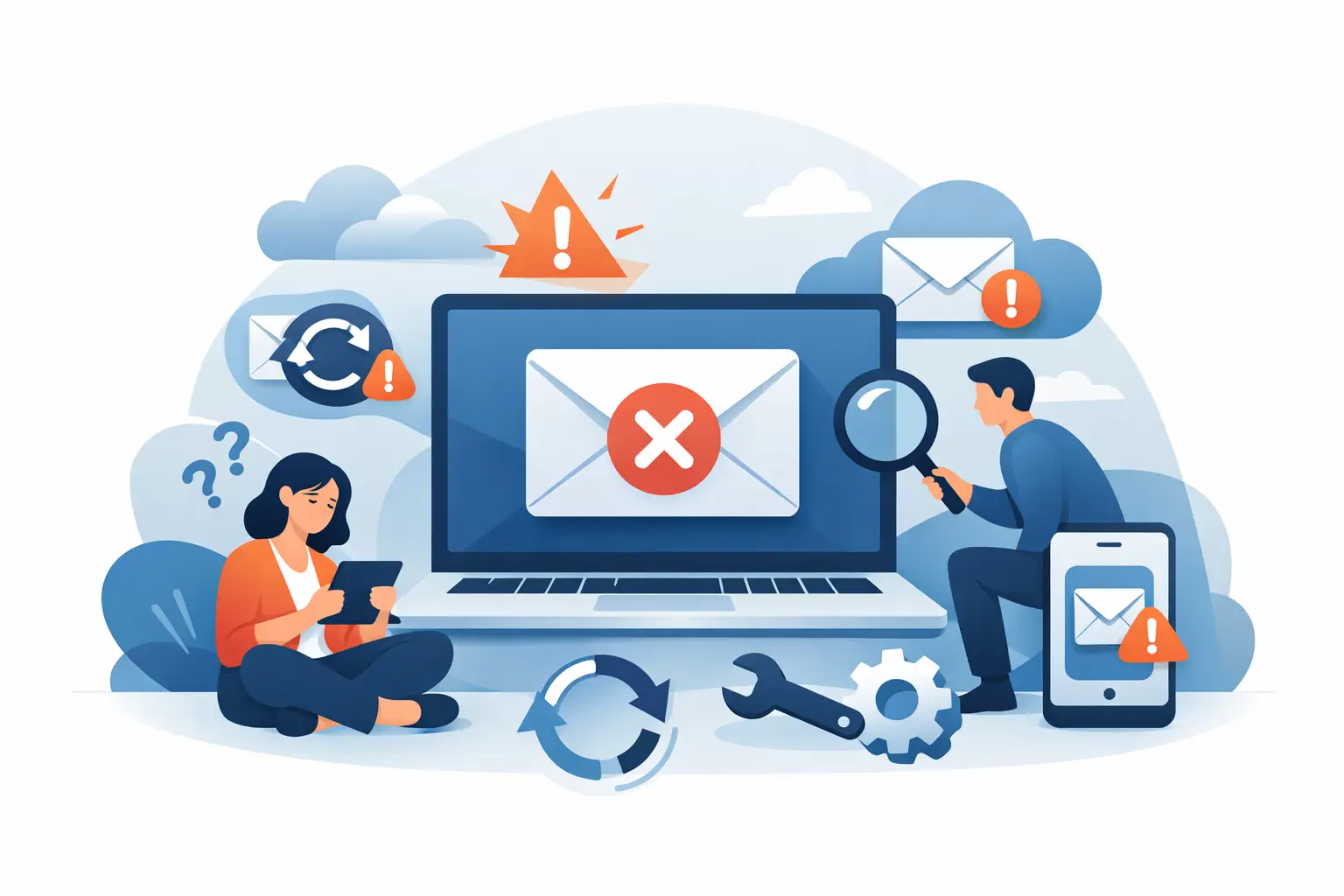
A message arrives on your laptop but not your mobile. Or you delete an email on one device, only to find it still sitting in the inbox on another. When people ask, “why is email not syncing?”, the issue is rarely the email itself. More often, it is a connection problem, a full device, an outdated password, or a setting that has quietly changed.
The good news is that most email syncing problems can be identified without technical guesswork. The key is to work out whether the issue is affecting one device, one email app, or the email account everywhere.
Why is email not syncing across your devices?
Email syncing means your phone, computer, tablet and webmail are all checking the same mailbox and updating changes between them. When that stops happening, the cause usually sits in one of three places: the internet connection, the device or app, or the email provider’s account settings.
Start by checking your email through webmail in a browser. This is an important first step because it separates an account issue from a device issue. If new emails appear in webmail but not in Outlook, Apple Mail or your mobile app, the account is working and the problem is local to that device or application.
If messages are missing from webmail as well, check whether someone has moved them into another folder, whether mail forwarding is enabled, or whether the account is close to its storage limit. A full mailbox can prevent new messages from arriving, even though sending may still appear to work for a while.
Your internet connection is unstable or restricted
Email apps need a reliable connection to check for new mail and update folders. A weak Wi-Fi signal, mobile data restrictions, a captive Wi-Fi login page, or a temporary router fault can leave an app showing old messages.
Try opening a website on the same device. If it loads slowly or not at all, reconnect to Wi-Fi, restart the router if appropriate, or switch briefly to mobile data. On a mobile, check that the email app is allowed to use mobile data and background data. Battery-saving settings can also pause background syncing, particularly on Android phones.
For a work account, a VPN or company security setting may be part of the issue. Do not disable security software permanently just to test email. Instead, note whether the problem occurs only when connected to a particular network and get the settings checked properly.
The email app has stopped checking for messages
Many email apps do not update continuously. They may be set to fetch mail every 15, 30 or 60 minutes, or only when the app is opened. This can look like syncing has failed when the app is simply set to check less often.
Review the account’s sync or fetch settings. On a mobile, make sure automatic sync is enabled and that the account is included. On a computer, confirm the app is online rather than in an offline or work-offline mode. In Outlook, for example, an offline setting can make the inbox look normal while preventing any new mail from downloading.
Close and reopen the app after changing settings. If that does not help, restart the device. It sounds basic, but it clears stuck background processes and resolves a surprising number of temporary sync faults.
Check the account before changing anything major
A password change is one of the most common reasons email suddenly stops syncing on only one device. This often happens after a provider asks you to update a password for security reasons, or after an account has been accessed from a new location.
Sign in to webmail directly using the current password. If you cannot sign in, reset the password through the provider’s normal account recovery process. Once access is restored, update the password in every email app that uses the account.
Modern email providers may also require two-step verification or an app-specific password. Older versions of Outlook, Apple Mail, or some printer and scanner email functions can fail if they are not compatible with the provider’s current security requirements. Repeated password prompts are a useful clue that authentication, rather than syncing, is the real problem.
Be cautious with password resets. Update the password first on the device you use most, confirm mail is sending and receiving, then update your other devices. That reduces the chance of being locked out by several devices repeatedly trying an old password.
Your mailbox or device storage is full
Email needs room to store messages, attachments and temporary sync files. If the mailbox at the provider is full, incoming messages may bounce back to senders or stop arriving. If the phone, tablet or computer itself is low on storage, the mail app may be unable to download new messages or attachments.
Check available storage on both the device and the email account. Large attachments, old deleted items and sent mail can use more space than expected. Emptying rubbish folders can help, but first make sure nothing important is sitting there. For business mailboxes, retention requirements may matter, so do not delete records simply to create space without checking what must be kept.
If storage is tight, save important attachments to an appropriate folder or business storage location, then remove unnecessary copies from the mailbox. A technician can help set up a safer archiving approach if the same problem keeps returning.
The account type affects what can sync
Not all email accounts behave in the same way. IMAP, Microsoft Exchange and Microsoft 365 accounts are designed to keep folders, read status and deletions aligned across devices. POP accounts usually download mail to one device and may not reflect changes made elsewhere.
This matters when emails appear on a computer but not a phone, or when deleting a message on one device does not remove it from another. If the account was set up as POP years ago, changing it requires care. Removing and re-adding an account without checking the setup can leave locally stored mail difficult to find.
Before making changes, identify the account type and confirm where the existing messages are stored. If you have an older email account or a small business mailbox with years of correspondence, make a backup before altering account settings.
Practical fixes when email is not syncing
Once you know webmail is working, use a simple order of checks rather than changing multiple settings at once. First, confirm the device has internet access. Next, check whether the app reports an error, asks for a password, or is set to offline mode. Then review sync frequency, account storage and available device storage.
If the app is still stuck, manually refresh the inbox. A refresh that produces an error message is useful information. Write down the exact wording, as it can point to a server, password, certificate or connection problem.
Removing and re-adding the email account can work, but it should not be the first fix. It is generally safe for IMAP, Exchange and Microsoft 365 accounts when all mail is visible in webmail. It is riskier for POP accounts or accounts with locally stored folders. Check first, especially if the device contains old mail that cannot be seen online.
For Outlook on a computer, a damaged local profile or data file may stop one mailbox from updating while other accounts continue to work. For mobile apps, clearing an app cache can help, though the option and consequences vary by device. Avoid clearing app data unless you know the account details and can sign back in.
Sending works, but receiving does not
This pattern usually suggests a receiving or sync issue rather than a total account failure. Check mailbox storage, spam and junk folders, mail rules, forwarding settings and the incoming server settings. On a mobile, check that the account is not set to sync only a limited number of days of email.
Receiving works, but sent mail is missing
If messages send successfully but do not appear in the Sent folder on other devices, the app may be saving sent messages locally or using the wrong Sent folder. This is common with older setups and accounts that have been transferred between providers. Folder mapping can normally be corrected without losing messages, but it needs to be done carefully.
One folder will not update
When only one folder is affected, look for filters, rules or subscription settings. Some email programs do not automatically display every server folder. Archive, junk, shared and custom folders may need to be selected manually. A mail rule may also be moving messages before you see them in the inbox.
When it is time to get help
Email can affect invoices, appointments, family communication and day-to-day business operations, so it is worth getting assistance before a small sync issue becomes lost time or missed work. Seek help promptly if you are seeing repeated password prompts, error codes, missing historical mail, suspicious sign-in alerts, or an account that has stopped syncing on every device.
For households and small businesses in Wellington, Hutt Valley and Porirua, Tech Experts can check email settings on-site or remotely, confirm that mail is safely stored, and get the right devices updating again. The aim is not just to make the inbox refresh once, but to leave you with an email setup that remains reliable across the devices you depend on.
Before making major changes, pause and confirm what is stored online, what is stored only on the device, and whether you have the current login details. That small bit of care can turn an email problem from a stressful interruption into a straightforward fix.