
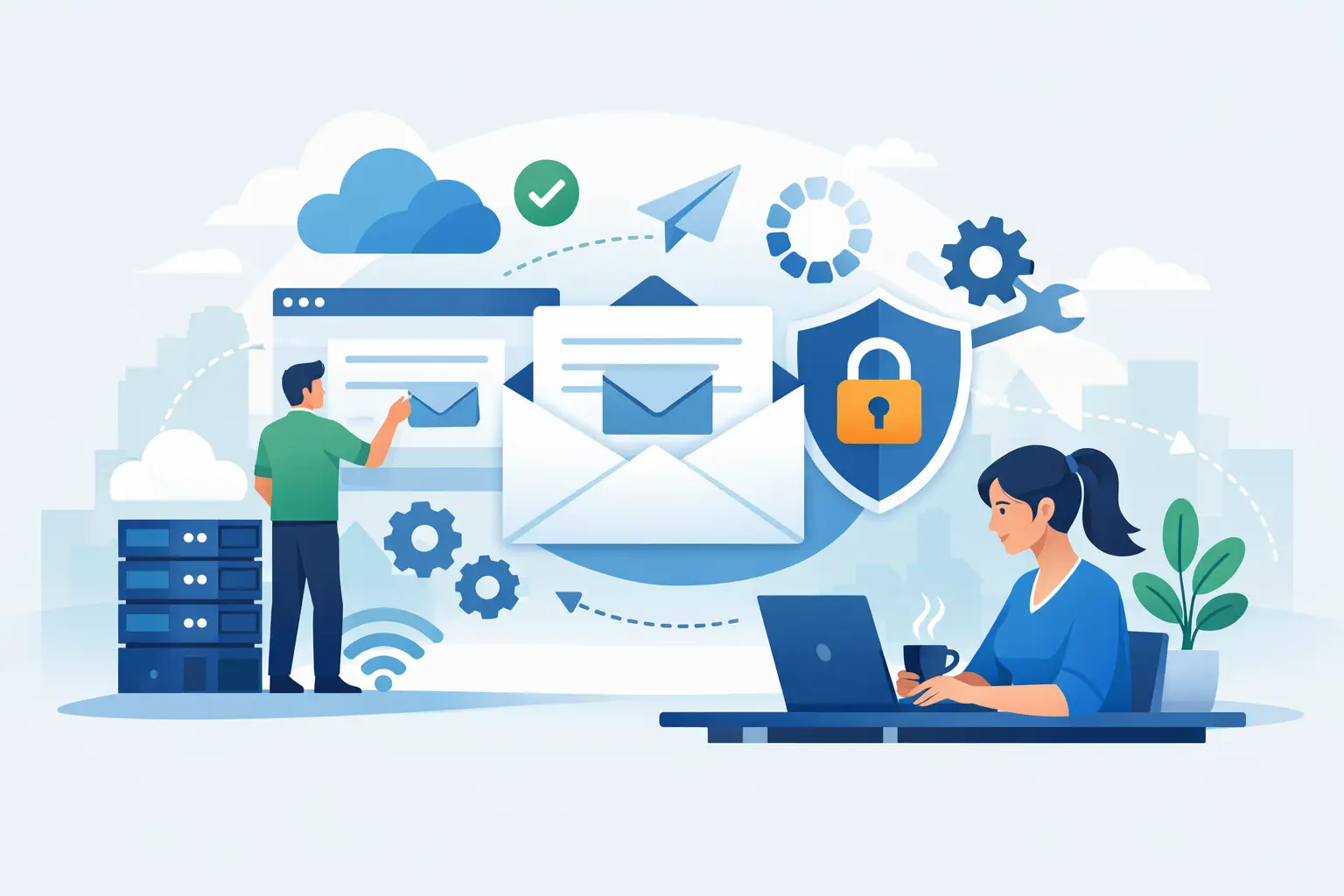
A missed email can mean a missed booking, an unpaid invoice or a customer wondering whether anyone is listening. That is why a small business email setup guide should focus on more than creating an inbox. Your email needs to look professional, work on every device your team uses and stay protected when someone clicks the wrong link or leaves the business.
For a sole trader, email may be one address used on a laptop and mobile. For a growing team, it can include shared mailboxes, calendars, customer enquiries and access to other business systems. The right setup depends on how you work, but the foundations are much the same.
Start with a business domain
A business email address should normally use your own domain, such as hello@yourbusiness.co.nz, rather than a free personal address. It is easier for customers to recognise, gives your business a more established appearance and remains under your control.
Register a domain that is short, easy to spell and closely matches your trading name. Before committing, say it aloud and imagine giving it to a customer over the phone. If it needs repeated spelling or is easily confused with another word, consider a simpler option.
Keep the domain registration details, renewal date and account recovery contact in a secure place that at least two trusted people can access. Domains occasionally expire because the renewal notice was sent to an old inbox or former staff member. When that happens, both your website and email can stop working.
Choose an email service that suits the way you work
The provider is where your messages, contacts, calendars and files are hosted. Many small businesses choose a Microsoft 365 or Google Workspace plan because they provide business email alongside familiar productivity tools. Others use email supplied with their website hosting. The best choice is not always the cheapest monthly option.
Website-hosted email can be adequate for a very small operation with basic needs. However, it may have tighter storage limits, weaker spam filtering and fewer options for shared calendars, mobile device management and account recovery. A dedicated business email platform usually costs more per user, but it is often easier to manage as the business grows.
Think about the tools your team already uses. If you create quotes and documents in Microsoft Office, share files through OneDrive or regularly work in Outlook, Microsoft 365 is a natural fit. If your work is centred on Gmail, Google Drive and Google Meet, Google Workspace may be more practical. There is no universal winner – consistency and proper setup matter more than the logo on the sign-in page.
Avoid setting up a single shared password for everyone. Each person should have their own account, even if several people need to see the same enquiries. Individual accounts make it far easier to protect access, track communication and remove access cleanly when roles change.
Plan addresses before you create accounts
Set up named addresses for staff, such as sam@yourbusiness.co.nz, rather than relying only on generic accounts. Named accounts make conversations more personal and help retain a clear record of who handled a customer request.
Generic addresses still have a useful place. Depending on your business, you may create info@, bookings@, accounts@ or support@ addresses. These should be shared mailboxes or groups where appropriate, so multiple authorised people can respond without passing around a password.
It is worth deciding who owns each inbox and what happens when they are unavailable. An accounts address that only one person can see becomes a problem during annual leave. Set clear forwarding or shared-access arrangements, but be careful with automatic forwarding to personal email accounts. Customer details and invoices should remain within business-controlled systems.
Connect the domain carefully
This is the step where email setup often goes wrong. Your email provider will give you DNS records to add through the company that manages your domain. These records tell other mail systems where to deliver messages and help prove that your business is allowed to send from its domain.
The key records usually include MX records for receiving mail, plus SPF, DKIM and DMARC for sending mail securely. You do not need to memorise what each acronym means, but you should understand why they matter.
SPF identifies the approved services that can send email for your domain. DKIM adds a digital signature that receiving mail systems can check. DMARC tells receiving systems how to handle messages that fail those checks and can send reports about attempted impersonation. Together, they reduce the chance of your genuine messages landing in junk mail and make it harder for scammers to pretend to be your business.
Do not guess when entering DNS records. One extra character, an old conflicting record or a missing setting can prevent mail delivery. Changes can also take time to update across the internet, so allow for a short waiting period before assuming something has failed.
Set up security before the inboxes become busy
Email is one of the main ways cybercriminals target small businesses. A convincing fake invoice, password reset notice or delivery message can arrive at any time. Good security makes one accidental click less likely to become a serious incident.
At a minimum, use these protections:
- Turn on multi-factor authentication for every account, including administrators. An authenticator app is generally safer than relying only on text messages.
- Use long, unique passwords stored in a reputable password manager. Never reuse a password from online shopping, social media or personal email.
- Give admin access only to people who genuinely need it. Everyday work should be done from a standard user account.
- Set account recovery options using business-controlled mobile numbers and alternate addresses, not one employee’s personal details.
- Review sign-in activity and forwarding rules periodically. Unexpected forwarding rules can be a sign that an account has been compromised.
Security also comes down to habits. Teach staff to pause before opening unexpected attachments, changing bank details from an emailed request or entering a password after following a link. For payment changes, confirm the request through a known phone number or an existing contact, not the number included in the email.
Move old email without losing important records
If you are changing providers or moving from a personal address to a business domain, plan the migration before changing anything. Start by deciding what needs to move: current inboxes, sent mail, contacts, calendars and folders containing tax, customer or project records.
A small mailbox may be simple to transfer. A business with years of email, multiple staff members and shared accounts needs a more careful approach. Keep the old service active until you have confirmed the transfer is complete and new messages are arriving correctly. Cancelling the old account too early is a common and avoidable cause of lost correspondence.
For a transition period, you can set an automatic reply on the old address asking customers to update their records. Keep the wording straightforward and include the new address. If the old account is personal, avoid publishing it on new invoices, business cards or your website once the new business address is working.
Configure every device and test real-world use
Email that works only on the office computer is not finished. Set up required accounts on work laptops, mobiles and tablets, then check that the same messages, contacts and calendar appointments appear where they should.
Test sending and receiving with several outside addresses, including a common free email service. Send an attachment, reply from a mobile and check whether messages arrive in the inbox rather than spam. If you use a shared mailbox, confirm that the right staff can access it and that replies show the correct business address.
Also check practical details that are easy to overlook: your display name, email signature, out-of-office response and contact phone number. A clean signature with your name, role, business name and direct contact details gives customers a simple way to respond. Avoid oversized images or promotional banners that may not display properly on mobile devices.
Keep email manageable as your business changes
Email setup is not a set-and-forget job. Review user accounts when someone joins, changes roles or leaves. Remove access promptly for former staff, transfer ownership of important files and redirect customer enquiries to the right person.
It is also sensible to decide how long you need to retain email. Financial records, customer approvals and project correspondence may need to be kept for operational or legal reasons. Your needs will vary, so consider a backup or archiving option if losing access to older messages would create a real problem. A standard email platform provides useful protection, but it should not be assumed to be a complete backup strategy for every situation.
If email is delaying your work, it should be treated as a business interruption, not a minor annoyance. A properly configured address, secure sign-in and reliable access on the devices you use every day give customers confidence that they can reach you when it matters. For Wellington, Hutt Valley and Porirua businesses that would rather get on with serving customers, Tech Experts can provide practical on-site or remote help to get the setup checked and working properly.