
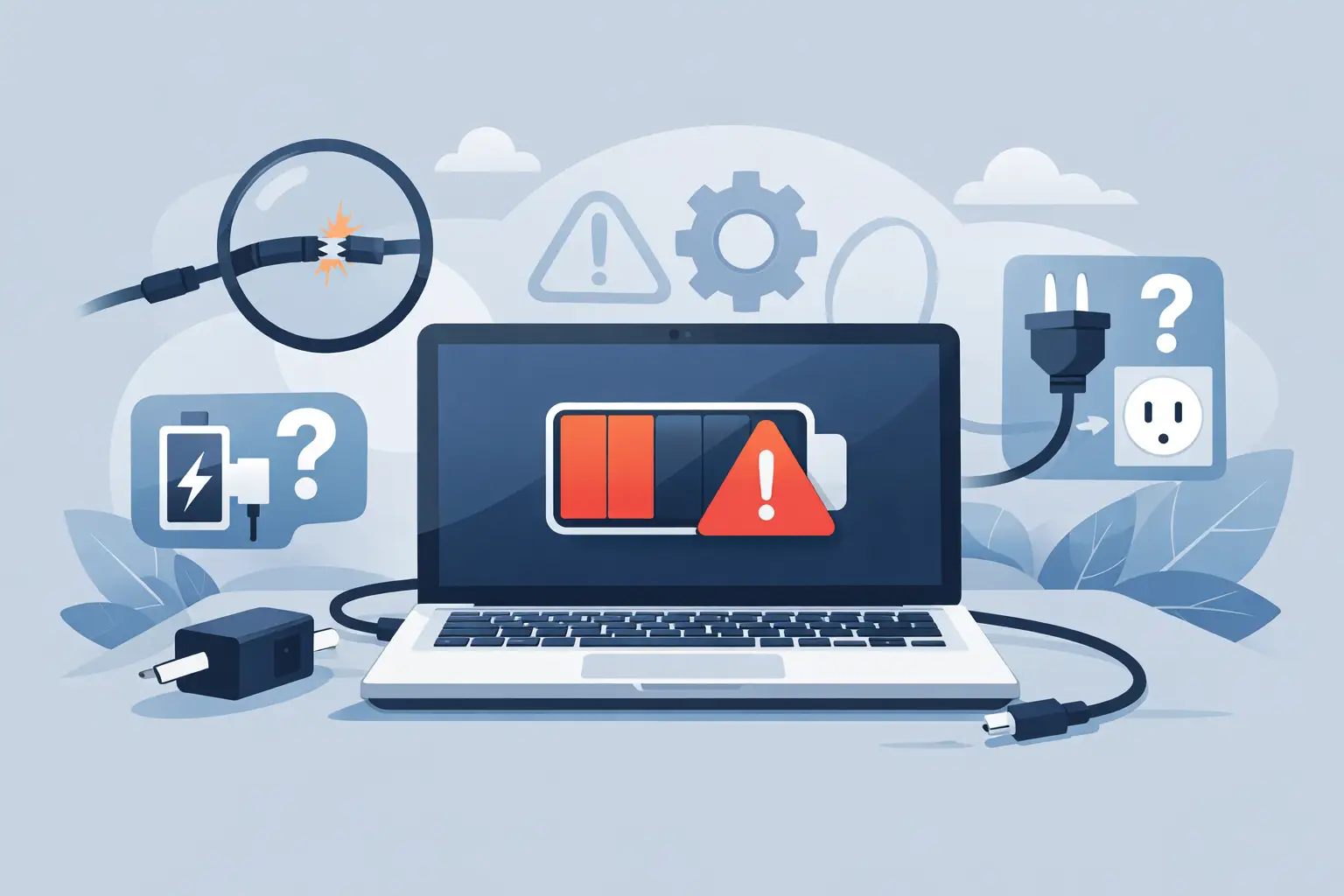
A laptop that only charges at a certain angle, stays stuck at 0%, or loses power while plugged in can stop work quickly. When your laptop not charging properly message appears, the cause may be as simple as a loose power point or as complex as a worn battery, damaged charging port, or software fault. The key is to rule out the safe, obvious problems first without risking the laptop or your files.
Start with the charger and power source
Before assuming the battery has failed, check the full charging path: wall socket, power board, charger, cable and laptop port. A charger can look perfectly fine while having a break inside the cable, especially near the plug ends where it bends most often.
Plug the charger directly into a known-working wall socket rather than a power board. If the charger has a small indicator light, check whether it is on. Then inspect the cable for exposed wires, deep kinks, scorch marks, a loose plug or excessive heat. Do not keep using a charger that is hot enough to be uncomfortable, damaged, or making a buzzing sound. Unplug it and arrange a replacement.
If someone in your household or workplace has an identical, genuine compatible charger, testing it can quickly narrow down the problem. Be careful with USB-C chargers, though. The plug may fit while the charger does not provide enough wattage. A low-powered phone or tablet charger might keep a laptop running slowly but not charge its battery, particularly while you are using demanding programs.
Check the laptop charging port
The charging port is used every day and can become loose, blocked or damaged. Shine a torch into the port and look for lint, dust or anything that does not belong there. Do not insert metal objects, liquid cleaners or anything sharp into the port. These can bend internal pins or cause a short circuit.
With the laptop on a stable surface, connect the charger gently. If charging begins and stops as you barely move the plug, the port, cable or charger connection may be worn. Avoid holding the cable in a particular position with tape or pressure. It may seem like a temporary fix, but it can worsen the damage and create a safety concern.
A laptop that will not charge through one USB-C port but works through another may have a faulty port rather than a battery issue. Traditional round charging sockets can also loosen internally after years of use. This is normally a hands-on repair, not something to force at home.
When a laptop is not charging properly but still turns on
If the laptop works while plugged in but the battery percentage does not rise, pay attention to the wording beside the battery icon. Messages such as “plugged in, not charging”, “battery not detected”, or “consider replacing your battery” provide useful clues.
First, restart the laptop. A restart clears many temporary power-management glitches. Once it starts again, leave it plugged in for 20 to 30 minutes with unnecessary programs closed. If the percentage rises only very slowly, the charger may be underpowered, the battery may be ageing, or the laptop may be using more electricity than the charger can supply.
High-demand tasks can affect charging behaviour. Video calls, external monitors, large spreadsheets, gaming, photo editing and many browser tabs all increase power use. Some laptops deliberately slow or pause charging when they are hot to protect the battery. Let the device cool on a hard, clear surface and try again. Using a laptop on bedding, a couch or a thick blanket can block ventilation and contribute to overheating.
Reset the power controller
Many laptops have a small power controller that manages charging. It can occasionally become confused after a power surge, flat battery or system update. For most models, shut the laptop down completely, unplug the charger and hold the power button for around 15 to 30 seconds. Reconnect the charger, wait a moment, then turn the laptop back on.
This simple reset does not delete documents or photos. However, it is different from opening the laptop or removing an internal battery. Modern laptops are not designed for casual disassembly, and opening the case can damage clips, cables or components.
Software settings can affect charging
Laptop makers often include battery health settings intended to reduce long-term wear. These may limit charging to 60% or 80%, especially when the laptop spends most of its life on a desk. That can look like a fault, but it may be an intentional setting.
Check the manufacturer’s battery or device management app for options such as battery conservation, smart charging, adaptive charging or charge limit. If your laptop always stops at the same percentage and otherwise operates normally, this setting is worth checking before buying a new battery.
Operating system updates and driver issues can also interfere with battery detection. Restarting is the sensible first step. If the problem began immediately after an update, professional support can check power drivers and system settings without taking unnecessary risks with your data. Avoid downloading random “battery repair” utilities. They rarely repair a physical battery problem and may introduce unwanted software.
Signs the battery needs replacement
Laptop batteries do not last forever. Their capacity naturally reduces over time, and a laptop that once ran for six hours may eventually last for one. A battery replacement may be appropriate when it drains unusually fast, shuts down well before reaching 0%, will not hold any charge, or is reported as needing service by the operating system.
Age alone does not tell the whole story. A three-year-old laptop used heavily for remote work may have more battery wear than an older device used occasionally. Heat, frequent full discharges and long periods stored flat can also shorten battery life.
The most serious warning sign is physical swelling. If the case is lifting, the trackpad has become difficult to click, the keyboard is bulging, or the laptop no longer sits flat, stop using and charging it. A swollen lithium battery needs prompt professional attention. Do not press the case down, puncture the battery, or place the laptop in household rubbish.
Protect your files before the issue worsens
A charging issue is not always a data issue, but repeated sudden shutdowns can corrupt open files and make a small problem more disruptive. If the laptop still starts, back up essential documents, photos, email archives and business files as soon as possible. Save work regularly while investigating the fault.
For small businesses and sole traders, prioritise the files that would be hardest to recreate: client records, invoices, quotes, accounting data and current project folders. A working charger is useful, but a reliable backup is what prevents a charging fault becoming a business interruption.
When to stop troubleshooting at home
It is reasonable to try another suitable charger, a different wall socket, a restart and a check of battery settings. Beyond that, the best next step depends on what you find. A replacement charger may solve the issue cheaply. A loose port or internal battery fault needs diagnosis, and an older laptop may need an honest cost comparison between repair and replacement.
Seek help promptly if you notice burning smells, sparking, swelling, liquid exposure, a damaged cable, a port that moves inside the case, or repeated unexpected shutdowns. These are not problems to work around during a busy week.
For Wellington, Hutt Valley and Porirua households or small businesses, Tech Experts can assess charging faults on-site or provide practical remote guidance where appropriate. A clear diagnosis helps you avoid replacing parts that are still working and gets your laptop back into reliable service sooner.
Treat an unreliable charger as an early warning, not an inconvenience to tolerate. A few careful checks and a timely repair can protect both your laptop and the work you depend on.