
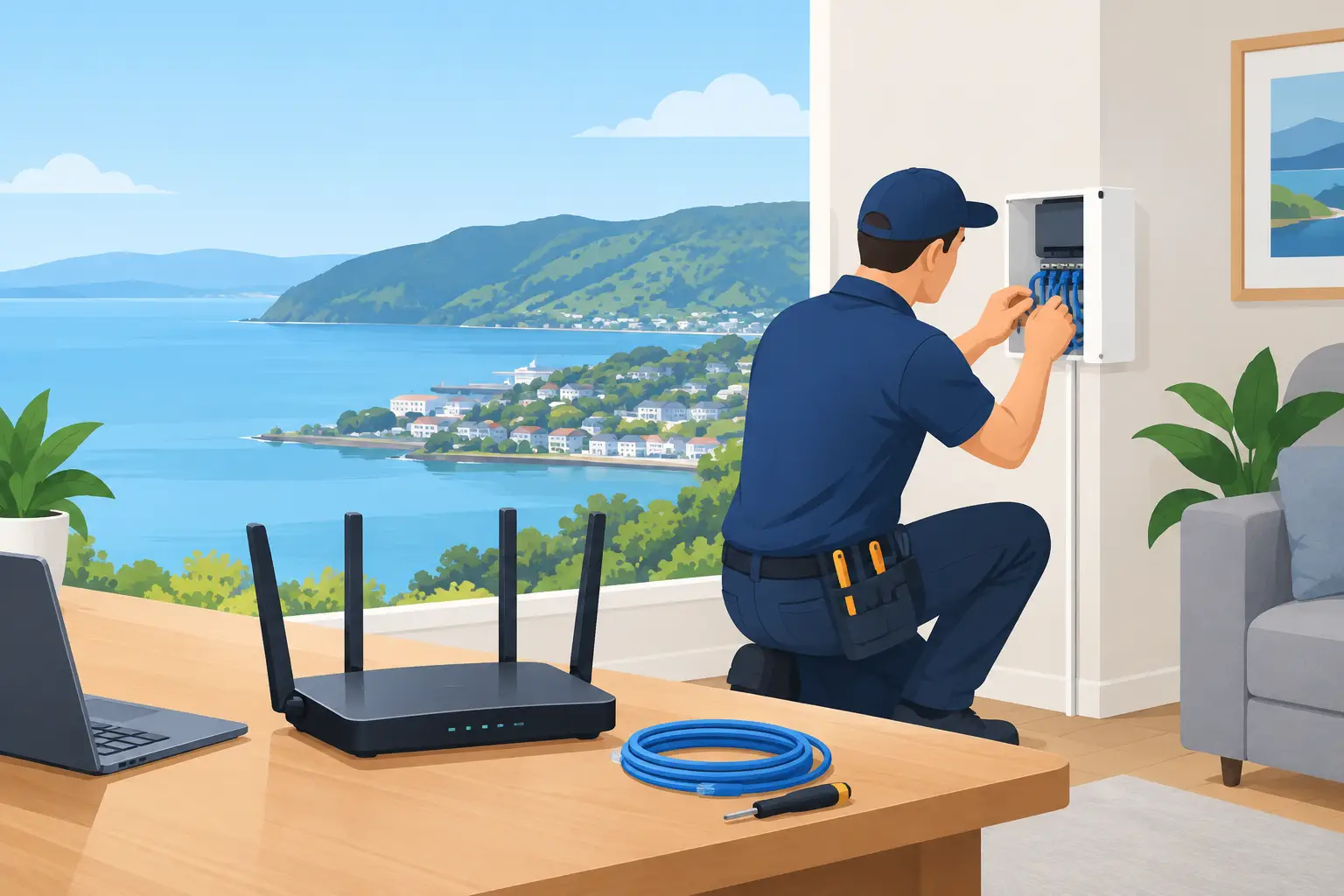
A network problem is rarely just a network problem. It can mean a video call dropping out halfway through, EFTPOS slowing down at the busiest part of the day, a printer disappearing from every computer, or a household arguing over why one room has no Wi-Fi. This Porirua network installation guide explains how to set up a reliable connection with fewer surprises, whether you are improving a home office or preparing a small business site.
The right setup depends on the building, the number of users, the internet plan and what needs to stay connected. A compact unit with two people working remotely needs a different approach from a multi-room home, workshop or busy retail space. Starting with a clear plan saves time, avoids buying unsuitable equipment and makes future troubleshooting much easier.
Start with the connection coming into the property
Before looking at routers and Wi-Fi extenders, identify where your internet service enters the building. Many Porirua properties use fibre, with an optical network terminal – often called an ONT – installed on an inside wall. This small box is the handover point between the fibre service and your router.
Check that the ONT has power, its status lights appear normal and the internet service is active with your provider. A new router cannot solve an issue caused by an incomplete provider connection, a damaged fibre lead or an account that has not yet been activated.
Place the router close enough to connect to the ONT with a good-quality Ethernet cable. Avoid stretching a cable through a doorway or leaving it where it can be crushed under furniture. If the ONT is hidden in a cupboard, garage or corner of the property, you may need a planned cable run or a separate Wi-Fi access point rather than accepting poor coverage throughout the building.
For renters, it is wise to ask permission before drilling holes or fitting permanent cable clips. For homeowners and business owners, professionally installed cabling can be worthwhile when the router location is simply not suitable for Wi-Fi.
Choose equipment for the job, not the box shelf
Internet provider routers are often perfectly adequate for a small, straightforward home. They can become limiting when several people work from home, devices are spread across multiple floors, or there are thick walls and older building materials between rooms.
A modern router with Wi-Fi 6 support is a sensible starting point for many homes and small businesses. It can handle more connected devices efficiently, although it will not make a slow internet plan faster than the service allows. If coverage is the problem, a mesh Wi-Fi system may be a better choice than a more expensive single router.
Mesh systems use two or more units to spread coverage around the property. They work well when units can communicate clearly, but placement matters. Putting a mesh unit in the room with the worst signal may not help if it receives only a weak connection itself. Position it partway between the main router and the poor-coverage area, or connect it by Ethernet where practical.
Wired access points are often the strongest option for larger homes, offices and premises with demanding work. They need more installation effort, but they avoid relying on a wireless signal to carry another wireless signal. This is particularly useful for cloud backups, video meetings, security cameras and shared business files.
Map what needs to connect before installation
A quick room-by-room check prevents the common mistake of setting up a network around only one laptop. Think about fixed devices as well as mobiles: desktop computers, printers, smart TVs, cameras, alarms, point-of-sale equipment, tablets and smart home devices all need a reliable path to the network.
For a small business, separate work devices from guest Wi-Fi. Guests should be able to access the internet without being able to browse printers, computers or shared storage. A separate guest network is usually easy to enable on suitable equipment and provides a practical layer of privacy.
It also helps to identify devices that should be wired. A desktop workstation, office printer, smart TV, console or network storage device will generally perform more consistently over Ethernet than Wi-Fi. Wired connections reduce interference and free up wireless capacity for devices that genuinely need to move around.
Porirua network installation guide: set up Wi-Fi properly
Router placement has a bigger effect than many people expect. Wi-Fi is radio signal, and it loses strength as it travels through concrete, brick, metal, water-filled appliances and dense walls. A router tucked behind a TV, on the floor or inside a metal cabinet starts at a disadvantage.
Aim for a central, elevated and open location where possible. Keep the router clear of microwave ovens, cordless phone bases and large electrical equipment. Do not place it beside an aquarium or behind a large mirror, as both can affect signal behaviour.
Most current routers offer both 2.4 GHz and 5 GHz Wi-Fi bands. The 2.4 GHz band travels farther and can be useful for smart devices or distant rooms, but it is often busier and slower. The 5 GHz band is generally faster at closer range, making it a good choice for work laptops, streaming and newer devices. Some systems manage this automatically under one network name, while others let you choose separate names.
Use a network name your household or team will recognise, but avoid putting your full address or business details in it. Set a strong, unique Wi-Fi password rather than reusing an email or banking password. Keep the password somewhere secure so it can be provided when a new device needs access.
Secure the network while it is being installed
Network security does not need to be complicated, but it should not be left until later. Change the router administrator password from the default value and install firmware updates before connecting every device. Router updates often fix reliability issues as well as security weaknesses.
Use WPA2 or WPA3 security if the equipment supports it. Avoid old WEP security and avoid an open network, even if the property is only used by family or a small team. Disable remote router administration unless there is a specific, understood reason to use it.
For businesses, consider a separate network for devices such as cameras, smart speakers or visitor tablets. These devices can be convenient, but they do not always receive updates as reliably as computers and phones. Keeping them separate can reduce the impact if one becomes compromised or behaves unpredictably.
Test real use, not just the speed test
A speed test near the router is useful, but it is not the full answer. Walk through the places where people actually work, stream, print or take calls. Test a video call from the home office, print a document from the usual laptop and check that mobile devices reconnect as you move between rooms.
Pay attention to consistency. A connection that reaches high speeds once but drops out every afternoon may have interference, congestion, a failing cable or an incorrectly placed mesh unit. Rebooting equipment can temporarily clear a fault, but repeated issues deserve proper investigation.
Keep a simple record of the router model, administrator details, Wi-Fi name, password storage location and which ports are used for key equipment. For a business, label Ethernet cables at both ends. This small amount of organisation can cut down support time when equipment is moved, replaced or accidentally unplugged.
Know when an on-site assessment is worth it
Some network jobs are straightforward: connect the router, update it, set secure Wi-Fi and test the devices. Others need more careful work. Large properties, dead zones, older wiring, multiple access points, office moves, camera systems and intermittent faults can all benefit from an on-site assessment.
There are trade-offs. Wireless mesh is often quicker and less disruptive than running cable, while structured cabling usually gives better long-term performance. A technician can assess signal levels, identify interference, configure equipment correctly and explain the setup in plain language. Tech Experts can provide practical on-site or remote help when you need the network working without losing a day to trial and error.
A good network should fade into the background. If it lets people work, call, print, stream and share files without constantly thinking about the connection, the installation is doing exactly what it should.