
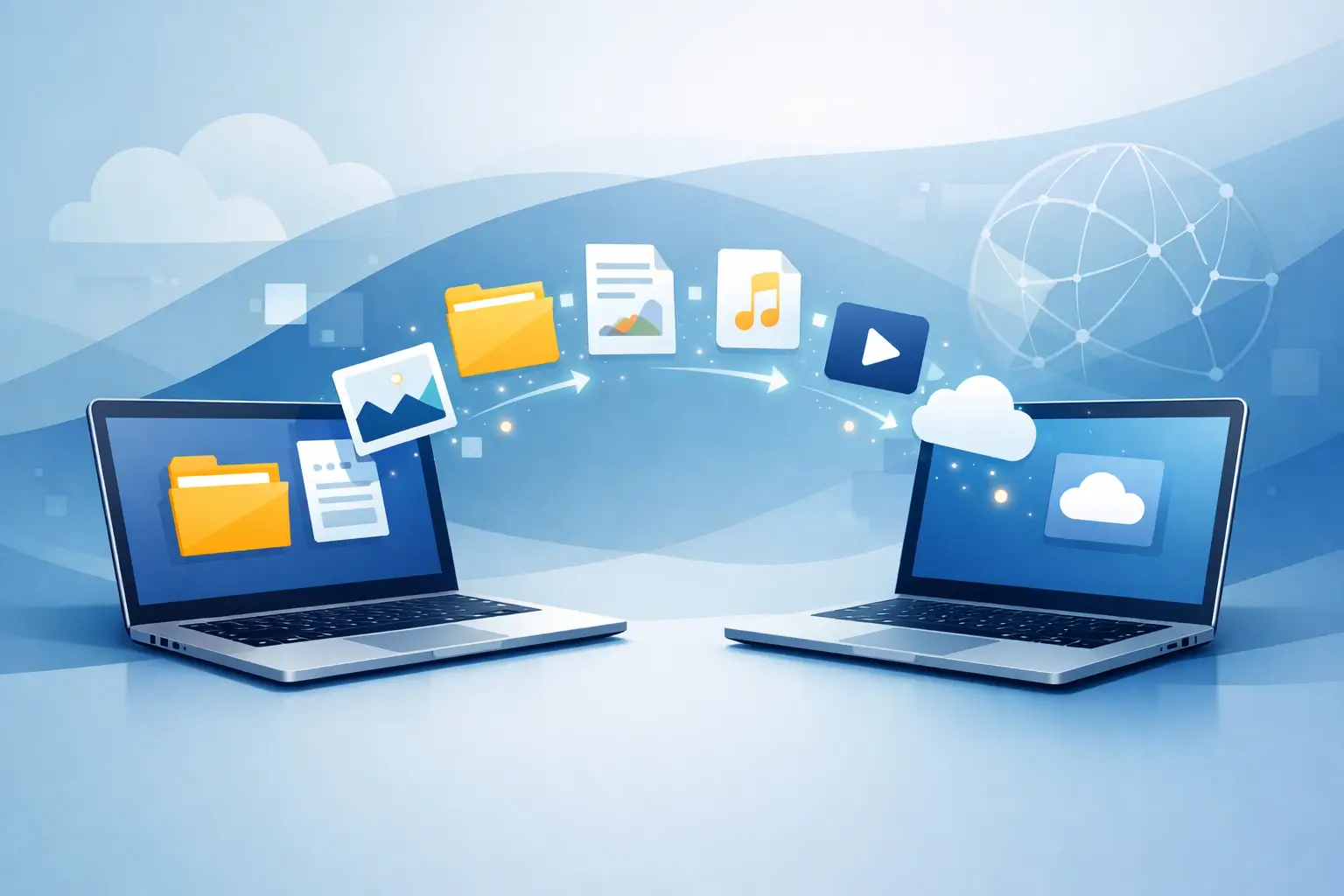
That new laptop feels great right up until you realise your files, emails, bookmarks, photos and software settings are still living on the old one. New computer data transfer is often the part people put off, not because it is impossible, but because one wrong move can mean duplicated files, missing folders or hours spent hunting for passwords.
The good news is that most transfers are very manageable with the right approach. The trick is not rushing. A bit of planning at the start usually saves a lot of frustration later, especially if you rely on your computer for work, study or running a small business.
What new computer data transfer actually includes
A lot of people hear “data transfer” and think only of documents and photos. In practice, it is usually much broader. You may need to move desktop files, downloads, email archives, browser bookmarks, accounting records, saved passwords, templates, scanned documents, music, videos and software-related data.
Some items transfer easily. Word documents, PDFs and photos are usually straightforward. Other items are less obvious. Email can be stored in a desktop app rather than online. A bookkeeping program may keep its company file in a hidden folder. A browser might sync bookmarks automatically, but not saved local certificates or extensions.
That is why the first question is not “How do I copy everything?” It is “What do I actually need on the new computer from day one?” For home users, that may be personal files, family photos and email access. For a small business, it may also include invoice templates, client records, printer settings and cloud storage sign-ins.
Before you start the transfer
The safest new computer data transfer starts with a quick stocktake. Check what is on the old computer, where it is stored, and whether the new computer already has some of it through cloud syncing.
Start by identifying your key folders. Documents, Desktop, Pictures and Downloads are the obvious ones, but also look for folders created directly on the C drive, an external hard drive, or within software-specific locations. If you use OneDrive, Google Drive, Dropbox or iCloud, confirm what has already synced and what is only stored locally.
Next, make sure you can log in to your accounts. This matters more than people expect. A transfer can stall fast if you cannot remember your email password, Microsoft account, Apple ID or two-factor authentication method. It is much easier to sort that out while the old computer is still working.
Finally, back up the old machine before moving anything. That gives you a safety net if a file is overwritten, skipped or copied incorrectly. An external drive is often the easiest option, though cloud backup can also help if your internet connection is stable and you have enough storage.
The main ways to handle new computer data transfer
There is no single best method for every situation. The right option depends on how much data you have, how confident you feel, and whether your old computer is still working properly.
External drive transfer
This is one of the most reliable options for everyday users. You copy files from the old computer to an external hard drive or large USB device, then move them onto the new machine. It is simple, direct and does not depend on internet speed.
It works well for documents, photos, videos and project folders. It is less helpful for transferring entire application setups or complex email configurations. You still need to reinstall software separately and sign back into accounts.
Cloud-based transfer
If your files already live in a cloud service, this can be the easiest route. Sign in on the new computer, let the folders sync, and much of your content appears automatically. This is handy for remote workers and small businesses that already use Microsoft 365 or Google Workspace.
The trade-off is time and consistency. Large libraries can take hours or days to fully sync, and if the old folder structure is messy, that mess usually follows you. You also need to be careful not to delete something on one device and accidentally remove it everywhere.
Direct cable or network transfer
Some transfers can be done over a local network or by connecting both computers directly. This can be faster than cloud syncing and easier than manually copying dozens of folders one by one.
That said, setup can be fiddly if device permissions, operating system versions or sharing settings are not playing nicely. For people who want the fastest route with the least trial and error, this is often where professional help earns its keep.
Full migration tools
Migration software can copy user profiles, settings and files in one go. Sometimes that is useful, especially when moving between similar systems. But it is not always the best choice. If the old computer is cluttered, slow or full of outdated software, copying everything across can bring the same problems to the new device.
Often, a selective move is cleaner. Transfer the data you need, reinstall the programs you still use, and leave the digital rubbish behind.
What people forget to transfer
Missing files are only one part of the problem. More often, people get the basics across and then realise later that the small details matter just as much.
Email is a big one. If you use webmail, your messages are probably already online. If you use a desktop email app with local folders or archives, those may need manual export and import. Browser bookmarks and saved passwords can also be overlooked, especially if sync was never switched on.
Printers, scanners and specialty software deserve attention too. A new computer may need fresh drivers or updated versions of the programs you rely on. If you run a business, do not forget templates, signature files, local databases and folders shared with staff.
It is also worth checking your old Downloads folder. It is often chaotic, but it can contain installers, forms, invoices and scanned records you still need.
How to avoid common transfer problems
The biggest mistake is treating all files as equal. If you move everything without checking, you can waste space and make the new computer harder to use. If you move too little, you spend the next week discovering what was left behind.
A better approach is to prioritise. Start with critical files and business essentials, then move personal archives and less urgent folders. Open a sample of the transferred files on the new computer to make sure they actually work. Photos should open properly, spreadsheets should contain current data, and PDFs should not be corrupted.
Naming also matters. If you have multiple folders with similar names, it is easy to overwrite the wrong version. Keeping the old computer untouched until you confirm the transfer is complete is a sensible precaution.
If the old computer is damaged, unusually slow or showing signs of drive failure, do not push it harder than necessary. Repeated copying attempts can make a failing drive worse. In those cases, a careful recovery-first approach is safer than trying every DIY method you find.
When it makes sense to get help
Some transfers are simple enough to do in an hour. Others turn into a half-day job with account lockouts, missing Outlook files and a printer that suddenly stops connecting. The line between easy and stressful usually comes down to how much your day depends on that computer working properly.
For home users, support can be useful when there are family photos, old email records or a mix of cloud and local storage involved. For small business owners, getting help is often about reducing downtime. If your new computer needs to be ready for quoting, invoicing, video calls and printing the same day, there is value in having someone handle the move properly.
On-site or remote support can also help when the transfer is only part of the job. Setting up email, reconnecting printers, installing software and checking backups are often what makes the new machine genuinely ready to use.
A practical way to approach your transfer
If you are planning a new computer data transfer, keep it simple. Decide what you need first, back up the old device, choose the transfer method that matches your setup, and test the result before retiring the old machine.
There is no prize for doing it the hardest way. A clean, careful transfer usually beats a rushed one, and if you get stuck, a bit of expert help can save a lot of lost time. For most people, the goal is not just moving files. It is getting the new computer working the way you need it to, without the usual headaches.