
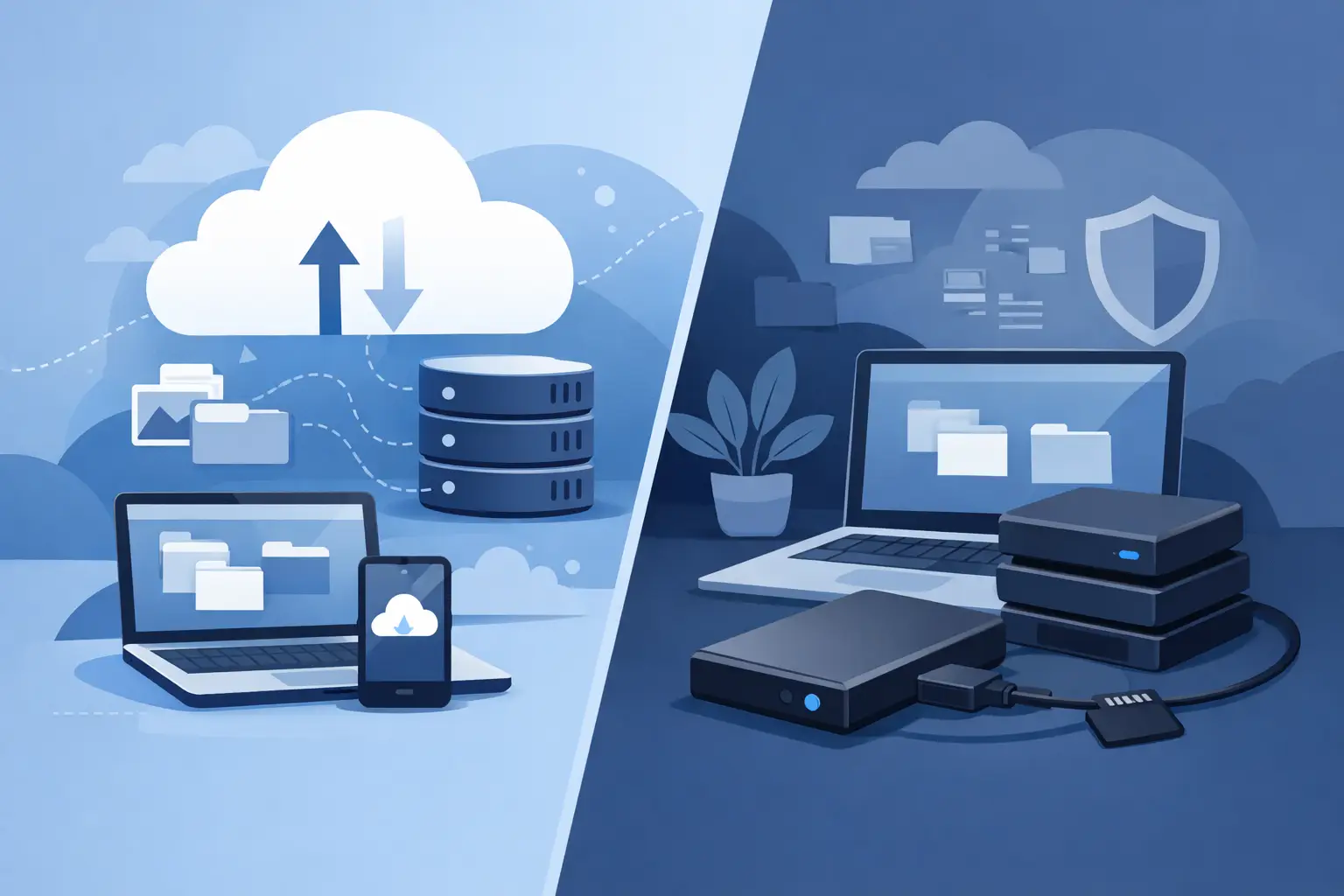
A laptop can fail without warning, but lost files are often the bigger problem. When weighing cloud backup versus external drive, the best choice comes down to what you need to protect, how quickly you need it back, and what happens if your home or workplace is damaged, burgled or hit by ransomware.
For most households, remote workers and small businesses, this is not an either-or decision. An external drive is fast and affordable. Cloud backup gives you an off-site copy that is available even when your equipment is not. Using both is usually the most reliable way to avoid a stressful data recovery job.
Cloud backup versus external drive: the key difference
An external drive is a physical storage device connected by USB or, in some cases, through your network. It can hold copies of documents, photos, email archives and business files. You control where it is kept and can restore large amounts of data quickly, provided the drive and your computer are still available.
Cloud backup sends an encrypted copy of selected files, folders or an entire computer to secure online storage. Your data is kept away from your premises, so it is less vulnerable to a stolen laptop, electrical surge, fire or water damage. Restoring files requires an internet connection, and the speed depends on your broadband connection and the amount of data involved.
The important distinction is location. If your backup sits beside your computer, one incident can affect both. If it is stored elsewhere, it gives you a second chance when a local problem becomes a major one.
When an external drive makes sense
An external drive is a practical starting point for people with a modest amount of data and a limited budget. Buy a quality drive with enough capacity for your current files and future growth, then use backup software to schedule regular copies. A manually copied folder is better than nothing, but it is easy to forget and may miss important files stored elsewhere.
Its biggest advantage is speed. If a computer’s internal drive fails, restoring several hundred gigabytes from a USB drive is normally much faster than downloading the same amount from the internet. This matters for photographers, designers and small businesses with large records, media files or accounting data.
An external drive can also be useful where internet uploads are slow or data allowances are restricted. Initial cloud backups can take days or weeks on a slower connection, particularly if you have years of photos and videos.
However, a drive is not automatically a safe backup. It can fail, be misplaced, be stolen or become unreadable after a power issue. If it remains permanently connected to a computer, ransomware may encrypt it along with your original files. If it is stored in the same room as the computer, a house fire or burst pipe can remove both copies at once.
For a drive-only approach to work, it needs good habits: back up regularly, disconnect it when the backup is complete, store it safely and check that the files can actually be opened. Many people discover too late that their backup has not run for months.
Where cloud backup is stronger
Cloud backup is designed for protection when you are away from your usual equipment. If your laptop is lost while travelling, your office is broken into or your computer cannot be repaired, your files are still stored off-site. You can usually restore them to a replacement device once it has been set up.
It is also convenient. After the first configuration, backups can run automatically whenever the device is online. This reduces the reliance on remembering to plug in a drive every Friday afternoon. For busy sole traders and remote workers, that consistency is often the difference between having a usable backup and having none.
Many cloud backup services keep previous versions of files for a set period. That can help if a document is accidentally overwritten or deleted. Version history can also provide protection against some ransomware incidents, as long as the clean copy is still retained and the account itself is secure.
The trade-off is ongoing cost. Rather than buying one drive, you generally pay a monthly or annual subscription. Pricing may also change as your storage needs grow. Before choosing a provider, check how much storage is included, whether external drives are covered, how long deleted files are retained and whether there are extra charges for restoring large amounts of data.
Internet speed is the other limitation. Restoring a few documents is usually straightforward. Restoring an entire computer with hundreds of gigabytes or several terabytes can take considerable time. For a business that needs to be working again tomorrow morning, that delay needs to be part of the plan.
Backup is not the same as file syncing
This catches out plenty of people. Services that sync files between devices are excellent for sharing current documents and keeping a folder available on a laptop and mobile. But syncing can copy mistakes too. Delete a file from one device, and the deletion may quickly appear everywhere.
A proper backup service is built around recovery. It should let you restore older versions, recover files from a particular date and retrieve data after a device has been replaced. A synced folder can be part of your protection plan, but it should not be the only copy of important files.
The same rule applies to an external drive used as extra storage. Moving files onto a drive to free up space is not a backup if that becomes the only place they exist. A backup means there are at least two separate copies.
Security and privacy need attention in both options
Cloud backup providers typically encrypt data during transfer and while it is stored. That is reassuring, but your account is only as secure as its login details. Use a long, unique password and turn on multi-factor authentication. Keep recovery details current, especially if the backup account is tied to an old email address or mobile number.
With an external drive, physical security matters more. Store it somewhere dry, secure and away from the computer when possible. If it contains financial records, client information or personal documents, use encryption so that a lost drive cannot simply be plugged into another computer and read.
Small businesses should also think about access. Avoid having a single staff member’s personal login as the only way to reach essential backups. Document who has access, where recovery codes are stored and who is authorised to make changes.
A practical choice for home users and small businesses
If you only have a small collection of important files, cloud backup may be the simplest option. It is automatic, off-site and less dependent on routine. It works particularly well for documents, email, photos and the files that keep a home office running.
If you handle large video projects, extensive photo libraries or business databases, an external drive is valuable because it makes local recovery quicker. In that case, adding cloud backup for your most important folders gives you protection from a wider range of problems without needing to upload every file immediately.
For critical work data, aim for the 3-2-1 approach: keep three copies of your files, on two different types of storage, with one copy stored off-site. Your computer is one copy. An external drive is another. Cloud backup provides the off-site copy. It is a simple principle, but it covers far more risks than relying on one device.
Set up a backup you can rely on
Start by identifying the files that would cause the most disruption if they disappeared. This could include invoices, customer records, tax documents, family photos, email archives, website files and saved passwords. Check where those files actually live, as they may be spread across a desktop, Documents folder, email program and cloud storage app.
Then decide how often changes need to be protected. A home computer may be fine with daily backups. A business creating invoices or customer records throughout the day may need more frequent protection. Automatic scheduling is preferable because it removes one more task from an already busy week.
Finally, test a restore before there is an emergency. Recover a few files to a different folder, open them and confirm they are current. Check that you know the backup account login and that the external drive is being detected properly. A backup is only useful when recovery works.
If the options feel confusing, or you need help setting up a backup plan around an existing computer, Tech Experts can help local Wellington, Hutt Valley and Porirua customers configure and test practical protection. The right backup is the one that keeps working quietly until the day you genuinely need it.