
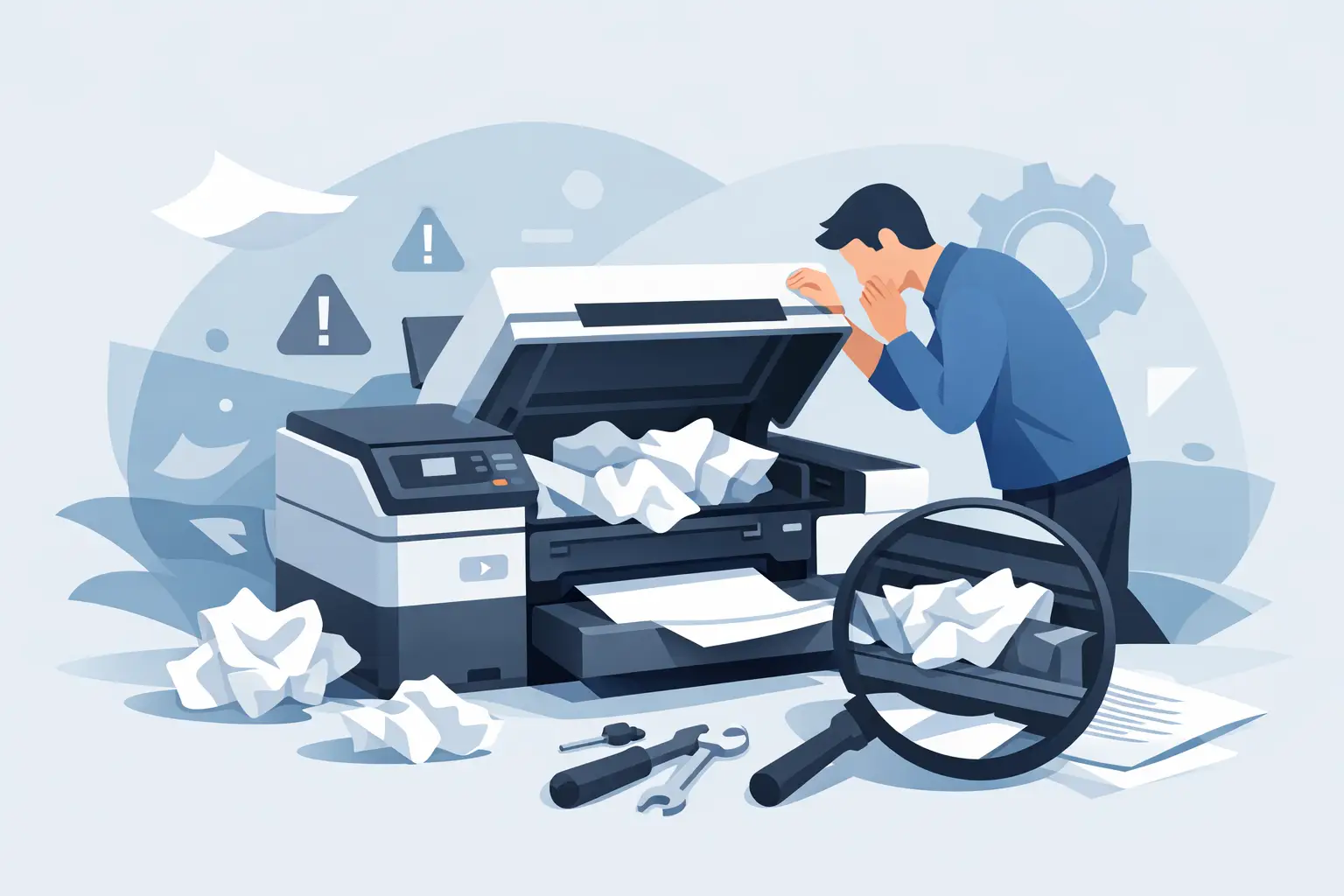
A paper jam always seems to happen at the worst possible moment: just as an invoice needs printing, a school form is due, or a client is waiting. If you are asking, “why is my printer jamming?”, the answer is usually not that the printer has suddenly failed. Most jams come down to paper condition, loading habits, worn moving parts or a small piece of paper left behind from an earlier jam.
The good news is that many printer jams can be cleared safely at home or in the office. The key is to slow down. Pulling hard on trapped paper, repeatedly pressing print, or opening parts at random can turn a simple jam into a damaged roller, sensor or print mechanism.
Why Is My Printer Jamming So Often?
A printer feeds paper through a narrow path using rubber rollers, guides and sensors. If the paper enters at an angle, two sheets feed at once, or a roller cannot grip properly, the printer stops to prevent further damage. The message on the screen may say “paper jam” even when the sheet is not obvious, because the printer has detected that paper did not move through the path as expected.
Frequent jams tend to have one of these causes.
The paper is damp, curled or unsuitable
Paper absorbs moisture from the air. In a humid room, sheets can stick together and feed through the printer in pairs. Paper stored near a window, heater or kitchen can also curl, making it more likely to catch on a guide.
Use clean, dry paper designed for your printer. Avoid sheets that are folded, creased, torn or heavily curled. If you use labels, envelopes, photo paper or thicker stock, check that your printer supports that material and load it through the correct tray or manual feed slot. Media that is too thick or too smooth can slip or get caught, particularly in smaller home printers.
The paper tray is overfilled or poorly adjusted
A tray packed tightly with paper may look efficient, but it puts extra pressure on the feed mechanism. Equally, paper guides set too wide allow sheets to enter at an angle, while guides pressed too tightly can pinch the stack.
Remove the paper, tap the stack gently on a flat surface to square the edges, then reload it below the tray’s maximum-fill line. Slide the guides in until they sit against the paper without bending it. It is a small adjustment that often makes a noticeable difference.
The feed rollers are dirty or worn
Rubber feed rollers grip the top sheet and draw it into the printer. Over time, dust, paper fibres and residue make them slippery. A worn roller may grab no paper, grab several sheets, or feed a sheet only partway before stopping.
With the printer switched off and unplugged, check the accessible rollers for visible dust or loose paper fibres. A soft, lint-free cloth lightly dampened with water can clean many rollers, but follow your printer manufacturer’s instructions where available. Do not soak the roller or use harsh household cleaners. If the rollers look shiny, cracked or smooth, cleaning may only be a short-term fix and replacement could be needed.
A scrap of paper is still inside
After a jam, it is easy to remove the large visible piece and miss a torn corner. Even a small scrap can block a sensor or interfere with the next sheet. Check every access point your printer provides: the main paper tray, rear door, output area, toner or ink-cartridge compartment, and duplexer if fitted.
Use a torch rather than poking inside with pens, scissors or metal tools. Those tools can damage sensors and fragile guides. If the printer is a laser model, allow it to cool first. Internal components around the fuser can become very hot during normal printing.
The duplexer or rear paper path is blocked
Double-sided printing sends the page through an additional route before printing the second side. This is a common place for paper to stall, especially when pages are thin, curled or previously printed.
If jams only occur when printing double-sided documents, turn duplex printing off for one test job. If the printer works normally one-sided, inspect the duplexer and rear access area for trapped paper, worn rollers or a loose guide. This narrows down the fault without guessing.
How to Clear a Printer Jam Without Causing More Trouble
Start by cancelling the print job. Then switch the printer off and unplug it if you need to access internal parts. Open the access panels indicated by the printer display or manual, and look for the leading edge of the paper.
Pull the paper slowly in the direction it would normally travel. Keep both hands close to the sheet so the force is even. If the paper will not move easily, do not yank it. Check whether another panel, cartridge or rear door needs to be opened first.
Once the paper is out, inspect it. If a corner is missing, keep looking. Close all covers securely, reload fresh paper and turn the printer back on. Before reprinting a 40-page document, try one plain test page. This helps you confirm that the paper path is clear and avoids repeating the same jam.
If the printer keeps displaying a jam message with no paper inside, a paper sensor may be stuck or damaged. This can also happen when a small piece of paper is lodged beyond easy reach. At that point, repeated attempts can do more harm than good.
The Printer Jam May Actually Be a Settings Problem
Not every reported jam is purely mechanical. A mismatch between the paper in the tray and the paper settings selected on the printer or computer can cause feeding issues. For example, the printer may be set for envelopes or heavy card while ordinary A4 paper is loaded. It may adjust its feeding process for the wrong material and stop unexpectedly.
Check the paper size and type in the printer’s tray settings, on the printer screen and in the print dialogue on your computer. For everyday printing, these should generally match: A4 paper in the tray, A4 selected in the settings, and plain paper chosen as the media type.
Older printer drivers can occasionally send incorrect settings too. If the printer is otherwise working but behaves oddly with a particular computer or application, updating or reinstalling the printer software may help. However, software will not fix a printer that has worn rollers, a broken guide or paper scraps in the mechanism.
Preventing Future Paper Jams
A few routine habits reduce the chance of another interruption:
- Store unused paper in its wrapper or a dry cupboard, away from moisture and heat.
- Load a sensible amount of paper and fan the stack lightly before placing it in the tray.
- Keep tray guides snug and check that the tray clicks fully into place.
- Use printer-approved labels, envelopes and specialty paper only when the correct feed path is available.
- Clean accessible dust and paper fibres during cartridge changes or after a large print run.
For a home printer used occasionally, dry paper and careful tray loading may be all that is required. A busy small-business printer is different. It may need rollers, a maintenance kit or professional cleaning after thousands of pages. Continuing to use a machine that regularly crumples paper can create extra costs, particularly if it damages important documents or holds up customer work.
When It Is Time to Get Printer Help
Arrange support if the same jam returns after you have used fresh paper, cleared the full paper path and checked tray settings. You should also stop using the printer if paper is coming out badly creased, it makes grinding noises, a cover will not close properly, or the display shows a jam with no visible obstruction.
A technician can identify whether the issue is a worn pickup roller, faulty sensor, damaged duplexer, fuser problem or a setup issue between the printer and computer. For households and small businesses, that can be quicker and more affordable than replacing a printer that only needs a straightforward repair or adjustment.
Tech Experts can provide practical on-site printer support across Wellington, Hutt Valley and Porirua, so you do not need to carry a troublesome printer to a shop. Whether the problem is a one-off jam or a printer that stops every few pages, getting the cause checked properly can put an end to the cycle of reloading paper and hoping for the best.
A printer should be a quiet background tool, not the task that takes over your morning. Treat the first recurring jam as a useful warning sign, and address it before it becomes a bigger interruption.