
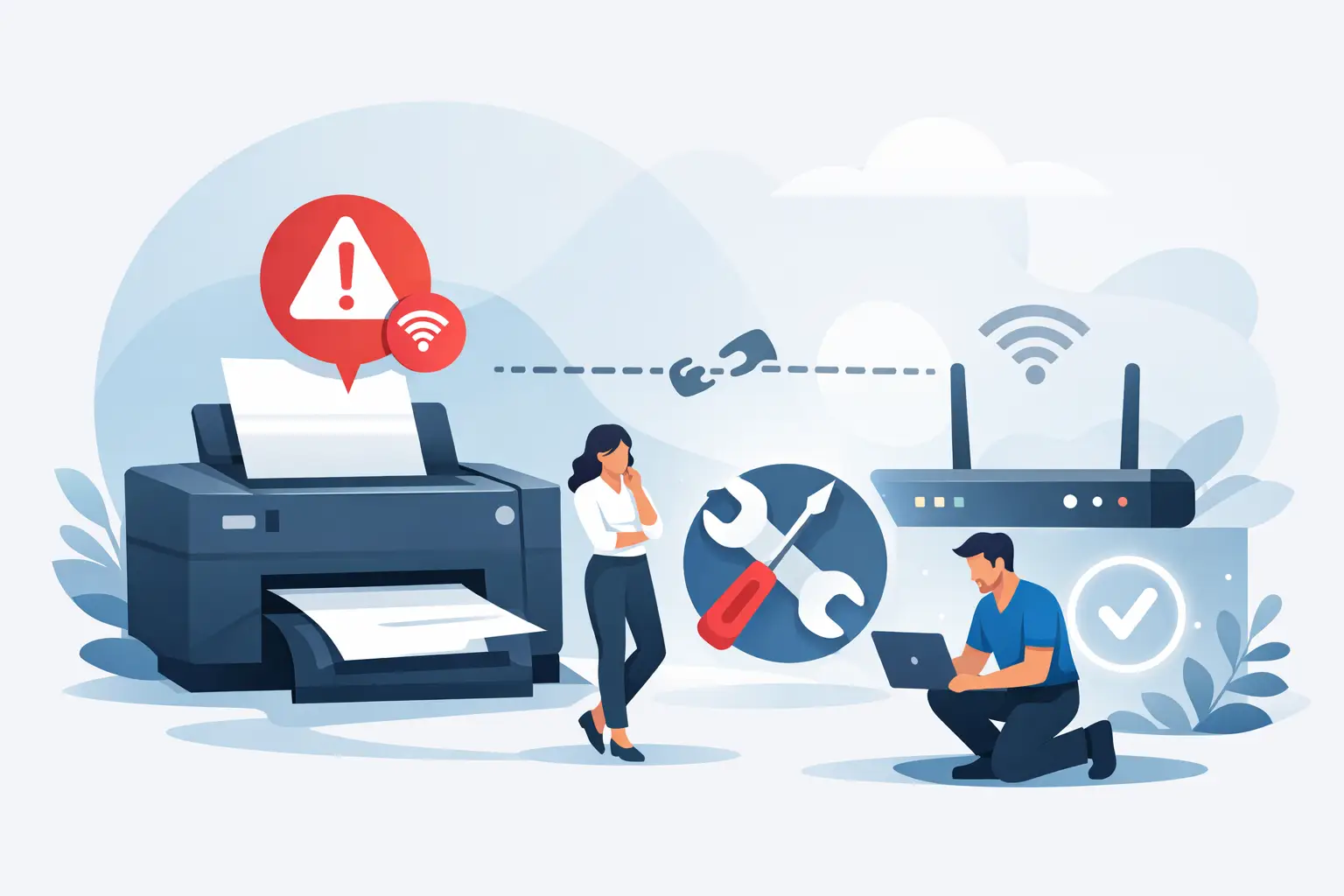
A printer that was working yesterday can suddenly show as unavailable right when you need invoices, school forms or a return label. If you need to fix printer offline errors, the good news is that the cause is usually something straightforward – a dropped Wi-Fi connection, the wrong default printer, a stuck print queue or a driver issue.
For home users and small businesses, that “offline” message can waste more time than the actual print job. The trick is not trying ten random fixes and hoping one works. It helps to check the basics first, then move through the likely causes in order.
Why printers go offline in the first place
A printer can appear offline even when it is switched on and sitting right in front of you. That is because your computer is not only checking whether the printer has power. It is checking whether it can communicate with it properly.
With a USB printer, that problem may be as simple as a loose cable or a port that has stopped responding. With a wireless printer, there are more moving parts. The printer needs to be connected to the correct Wi-Fi network, the network needs to be stable, and your computer needs to be looking for the right device.
Then there is software. Print spooler issues, outdated drivers, paused queues and old printer entries can all make a healthy printer look offline. That is why the best approach is methodical rather than technical for the sake of it.
Start here to fix printer offline errors
Before changing settings, check the obvious things properly. It sounds basic, but this stage solves a surprising number of jobs.
Make sure the printer is powered on and showing no error lights or paper jam messages. If it has a screen, check whether it says it is connected to Wi-Fi. If it is a USB printer, disconnect and reconnect the cable firmly at both ends. If possible, try a different USB port.
For wireless models, confirm your computer and printer are on the same network. This catches people out after a modem replacement or Wi-Fi name change. Many printers quietly stay connected to the old network or fail to reconnect after a restart.
If the printer was asleep, wake it and wait a minute. Some printers take longer than expected to re-establish a network connection, especially older models.
Check the printer settings on your computer
If the printer itself looks fine, the next place to look is the computer. A lot of offline errors come from Windows or macOS holding onto the wrong printer status.
Open your printer list and make sure the correct printer is selected as the default. If you have had the same printer reinstalled before, you may see multiple versions of it. One might say Copy 1 or show an older connection type. Sending jobs to the wrong entry can make it seem like the printer is offline when it is really just the wrong device.
Then open the print queue. If you see “Use Printer Offline” ticked, turn that off. Also check that printing is not paused. These settings can be enabled accidentally and are easy to miss because the printer itself appears normal.
If there are old print jobs stuck in the queue, clear them. One failed job can hold up everything behind it. After clearing the queue, send a small test page rather than a large document.
Remove duplicate or old printer entries
This is especially common after router changes, Windows updates or switching from USB to Wi-Fi printing. Your computer may keep an old printer profile that no longer points to the correct device.
If you see several versions of the same printer, remove the ones you are not using and keep the current, working entry. It is a small cleanup job, but it often stops the same issue returning.
Restart the right devices in the right order
A restart still works because it resets stalled services and network sessions. The difference is doing it in a useful order.
Turn off the printer, restart the computer, and if the printer is on Wi-Fi, restart the modem or router as well. Once the internet equipment is back up, turn the printer on and let it reconnect fully before trying to print. This order gives the printer the best chance of getting a fresh network address and showing online again.
If you are in a home office or small business setup, avoid testing from multiple computers at once during this stage. That can muddy the picture and make it harder to tell whether the issue is with the printer, the network or just one computer.
Network issues are often the real cause
When people see an offline printer, they often assume the printer is faulty. In many cases, it is really a network problem wearing a printer disguise.
Wireless printers are convenient, but they are more sensitive to weak signal, dual-band Wi-Fi quirks and router changes. If your printer is far from the modem, or separated by thick walls, the connection may be dropping just enough to show offline intermittently.
If your printer has the option to print a network status page, use it. That page can show whether it has a valid IP address and whether it is connected to the expected network. If the IP address is missing or unusual, reconnect the printer to Wi-Fi from its control panel or app.
When Wi-Fi is the problem
If the printer keeps going offline on wireless but works fine via USB, that tells you something important. The printer likely works, and the weak point is the network connection. In that case, moving the printer closer to the router, reconnecting it to Wi-Fi, or assigning it a more stable network setup may be the better fix than reinstalling everything repeatedly.
For some small businesses, a cable connection makes more sense than wireless, especially if the printer is used all day. Wi-Fi is tidy, but reliability matters more than tidiness when you are printing labels, orders or customer paperwork.
Update or reinstall the printer driver
If the printer is powered on, connected, and still showing offline, the driver may be the issue. Drivers are what let your computer talk to the printer properly. If they are outdated, corrupted or mismatched, communication can fail.
This often shows up after operating system updates, replacing a router, or adding the printer in a different way than before. Reinstalling the printer can sound like a hassle, but it is often quicker than chasing a half-broken setup.
Remove the printer from your computer, restart, then add it again. If the driver installs automatically and works, great. If not, you may need the correct software package for your printer model. The goal is to make sure your computer is talking to the printer using the current connection method, not an old one.
Don’t ignore the print spooler
On Windows, the print spooler service can also cause offline behaviour. If that service stalls, print jobs may sit there doing nothing or the printer may appear unreachable. Restarting the spooler can help, though for many users this is the point where support is worth it, because the symptoms can look like a driver fault or network issue.
When the problem keeps coming back
An occasional offline error is one thing. A printer that drops offline every week is usually pointing to an underlying setup problem.
It could be an unstable Wi-Fi connection, a duplicate printer profile, a firmware issue, or a computer holding onto an old IP address. The reason this matters is that temporary fixes stop being helpful if the same disruption keeps costing you time.
For households, that may mean repeated frustration. For a small business, it can mean delayed admin, missed dispatches or staff wasting time on a device that should just work. In those cases, the best fix is often a proper once-over of the printer, network and computer settings together.
If you are based in Wellington, the Hutt Valley or Porirua and the same printer problem keeps interrupting your day, getting practical help can be quicker than another round of trial and error. A good support technician will not only get the printer back online, but also sort out the setup issues that make it drop off in the first place.
A sensible point to stop troubleshooting
You do not need to spend half a day proving that a printer is being difficult. If you have checked the power, cables, Wi-Fi, default printer, queue and drivers, and it still will not stay online, the issue has moved past a simple user fix.
That does not always mean the printer is dead. It may just need the right setup cleaned up properly. And when printing is holding up work or home admin, the most cost-effective option is often the one that gets you back up and running without more wasted hours.
A printer should be boring. If it is demanding too much attention, that is usually your sign to get it sorted properly and get on with your day.